
Kanban board
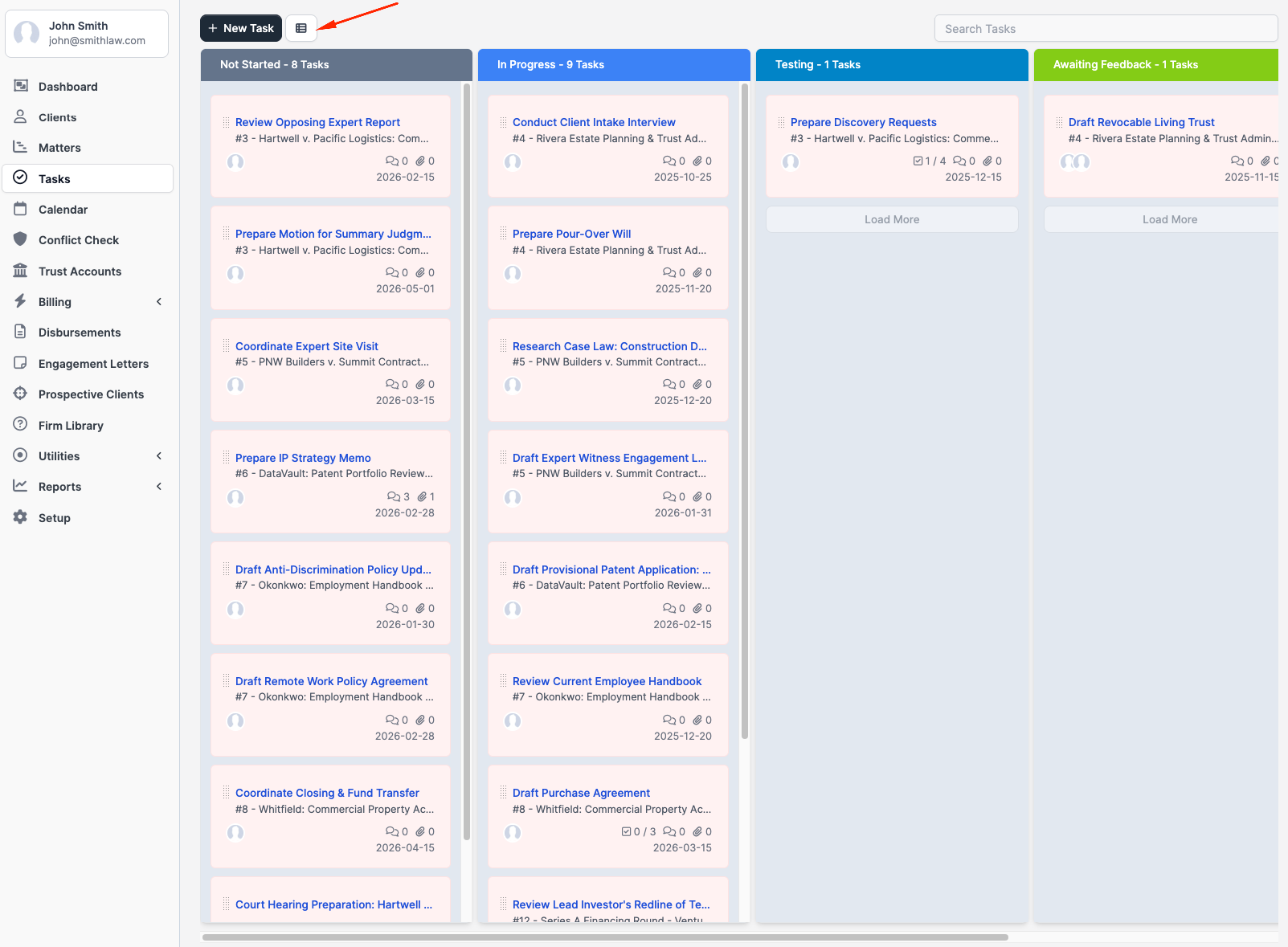
The Kanban board lays out tasks as cards in columns, one column per status. Drag a card between columns to change its status, or drag within a column to reorder.
Switching to the board
From the Tasks page, click the grid icon next to the New Task button (tooltip: "Switch to Kanban"). To return to the list, click the same toggle (tooltip: "Switch to List"). The choice is remembered in your session.
Columns are laid out left to right in this order:
- Not Started
- In Progress
- Testing
- Awaiting Feedback
- Complete
Each column header shows the column name, a colored band in the status's color, and the task count for that column.
Each card shows:
- Task name
- The related record name (matter, invoice, client, etc.) underneath, if any
- Assignee avatars
- Checklist progress (
done/total) if the task has any checklist items - Comment count
- Attachment count
- Due date (when set)
- Tags
The colored stripe on the top of the card encodes priority: gray (Low), blue (Medium), orange (High), red (Urgent).
Moving tasks
Drag a card from one column and drop it into another. The task's status updates as soon as you release. There is no confirmation dialog.
Within a column, you can also drag a card up or down to reorder it. The order is saved automatically.
You cannot drag tasks you do not have rights over. Specifically, a non-admin who is neither the assignee nor the creator of a task cannot drag that task.
Search and filtering
The Kanban toolbar has a search box only. It filters cards across every column by:
- A free-text match against task name and description
- A tag filter when you type
#tagname(exact tag match)
The list view has a richer filter dropdown (status, assignee, billable, billed, recurring, due-date-passed, today, upcoming, "tasks assigned to me", "tasks I'm following"); those filters do not appear on the Kanban toolbar. To filter Kanban tasks by matter, open the matter first and switch to its Kanban view.
Pagination
Each column paginates. The "Limit tasks Kanban rows per status" firm-wide option (Setup → Settings → Tasks) controls how many cards load per column. A Load More button at the bottom of each column fetches the next page.
Kanban inside a matter
Open the matter, go to the Tasks group, and switch to Kanban view. The board is filtered to that matter's tasks only. The toggle on the matter's Tasks tab links to the matter's task subpage rather than the firm-wide Kanban.
Card click behavior
Clicking a card (without dragging) opens the same modal you see in the list view, with full task details, comments, checklist, attachments, timer, and reminders. It is a centered modal, not a side panel.
Column limits
CaseFlow does not enforce work-in-progress limits per column. If you want to follow a strict Kanban methodology with WIP limits, manage that yourself by checking the count in each column header.
Tips
- Use the board in team standups to quickly see what is in progress and what is stuck
- The "Awaiting Feedback" column is useful for tasks blocked on external responses
- Use the assignee filter on the list view, then switch to Kanban to focus on one person; the search box on the Kanban toolbar does not filter by assignee