
Running a conflict check
Where to start
In the sidebar, click Conflict Check. The search form is on the left of the page; the firm's check history is on the right.
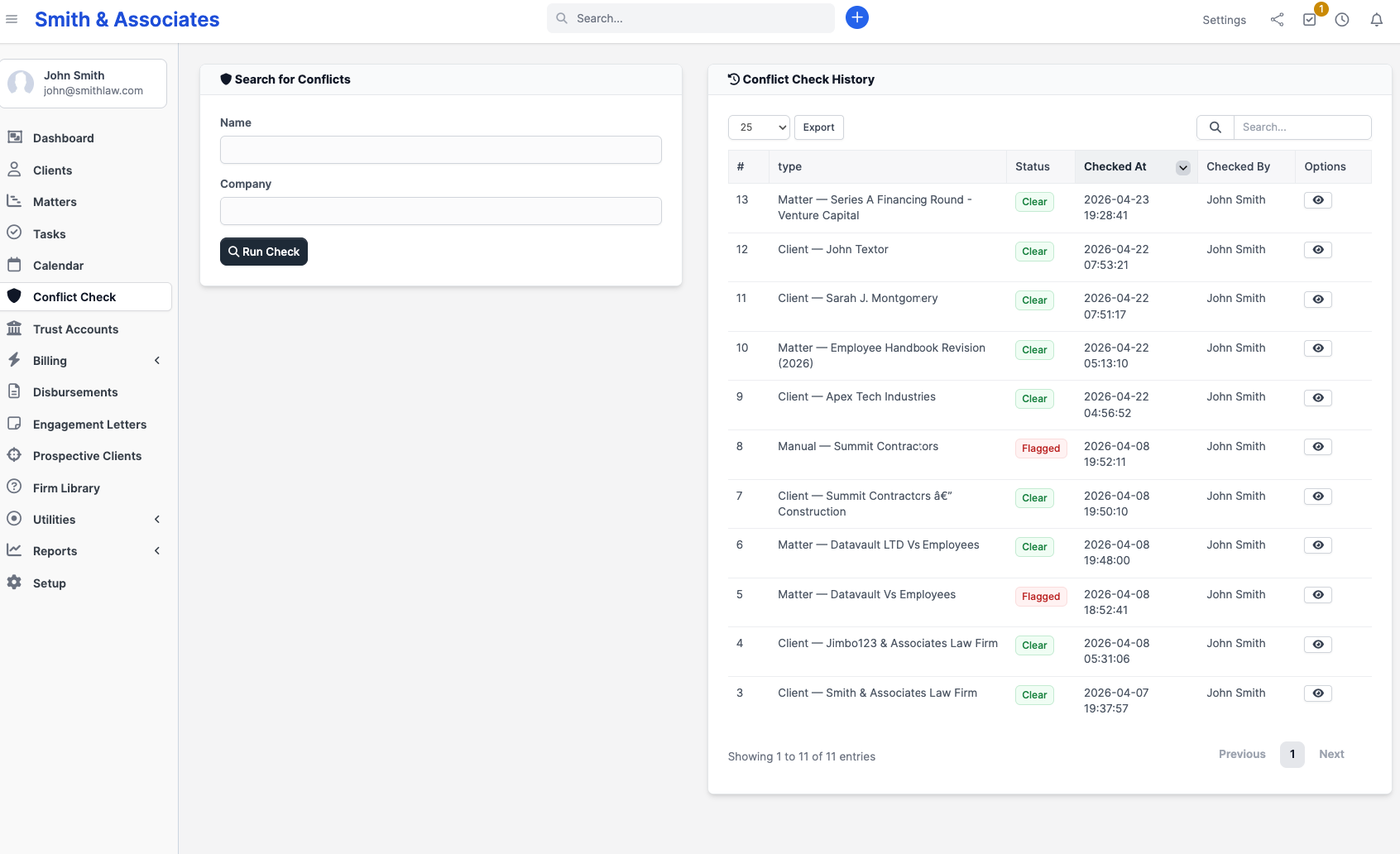
The search form
The form has two fields:
| Field | Purpose |
|---|---|
| Name | A person's full name or a single name fragment (e.g. "John Smith", "Smith"). |
| Company | The company or entity name. Optional. |
You must fill at least one of the two. Leaving both blank shows an error.
Press Enter in either field or click Run check to run the search.
What's searched
The Name field is checked against three places in your firm's data:
- Clients - the legal entity name on each client record (the firm or company name your firm represents).
- Contacts - the full name (first + last) of every contact in the system.
- Conflict parties - the Name entry on every matter's Conflict Parties tab.
If you also supply a Company term, two extra passes run:
- Another check against client company names, with common entity suffixes (LLC, Inc, Corp, Ltd, etc.) automatically stripped so "Acme LLC" matches "Acme Holdings Corp" and "Acme".
- A check against the Company entry on every matter's Conflict Parties tab.
Each pass uses three matching strategies side-by-side:
- Exact - same name, case-insensitive.
- Phonetic - sounds-alike match (e.g. "Smyth" matches "Smith").
- Partial - substring match (e.g. "Smith" matches "Smithfield").
Every match comes back with a relevance score between 0 and 100. Higher-scoring matches sort to the top within their risk tier.
The engine does not search:
- Matter names or matter descriptions
- Lead records (Prospective Clients)
- Email addresses
- Free-text notes or comments anywhere
If your firm relies on matching opposing parties, populate them on each matter's Conflict Parties tab. The engine cannot find what isn't recorded there.
Reading the results
Each row in the result table shows:
| Column | Meaning |
|---|---|
| Risk level | One of High risk, Review required, Informational, or No conflict (see Risk tiers) |
| Risk reason | A short explanation (e.g. "Opposing party in active matter", "Existing client match", "Low-confidence partial match") |
| Score | The 0-100 relevance score, colour-coded red (≥80), amber (≥50), or grey |
| Name | The matched record's name, with a small icon linking to the client or matter |
| Relationship | Where the match was found and, where applicable, the matter it sits on |
Results are sorted automatically: high-risk first, then review-required, then informational, then no-conflict, with relevance score breaking ties within a tier.
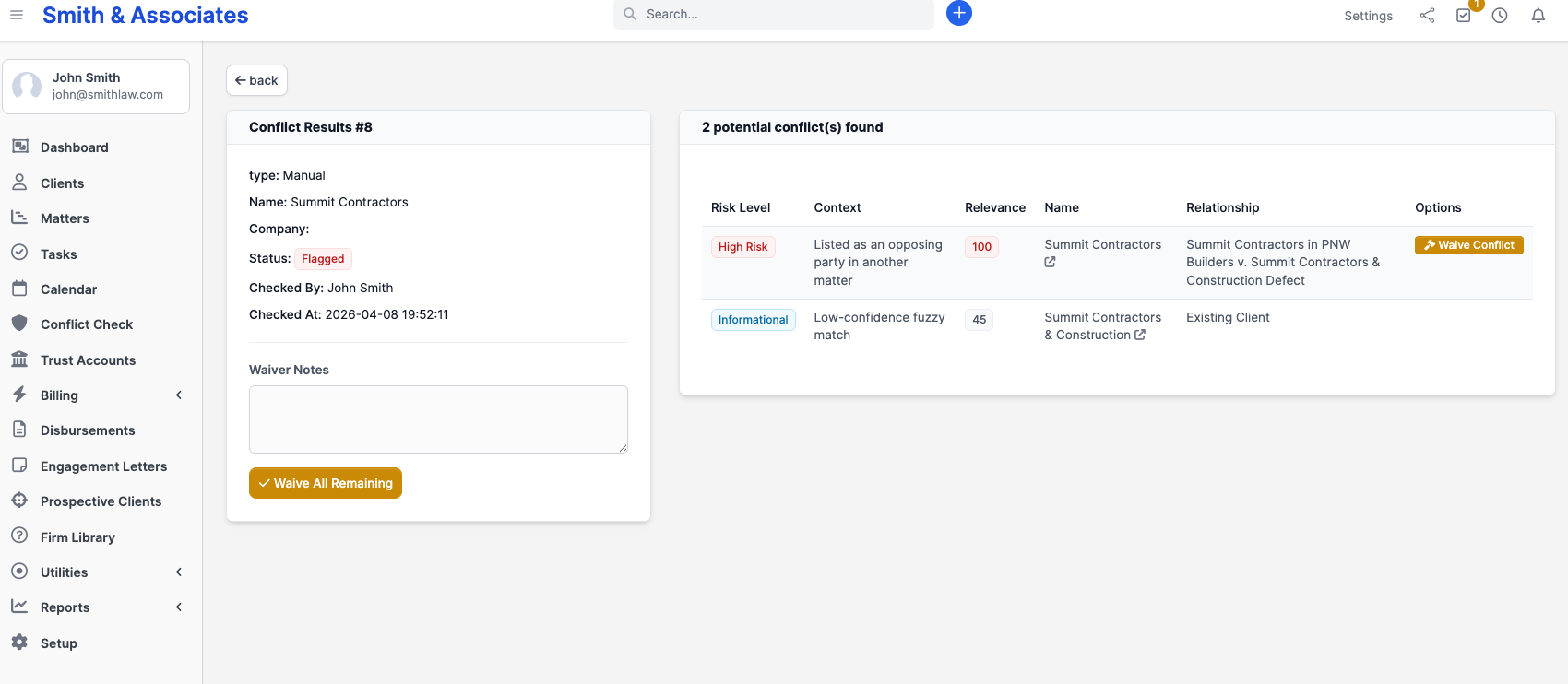
If the check has matches but none are actionable (no high-risk, no review-required), the banner above the table says "No actionable conflicts found" in green. If it has actionable matches, the banner is red and shows the match count. If the search came back empty, you see a single green "No matches found" line and no table.
Self-match handling
When a check is run with the matter already in context (for example, from a matter's Conflict Parties tab), CaseFlow filters out the matter's own client and that client's contacts so the same firm doesn't appear to "conflict with itself."
A check run from the sidebar with no context shows every match, including the searched client's own records.
History
Every check is logged automatically. The history panel on the right of the page shows each check with:
- A check number
- The type (Manual for sidebar checks, or Matter for checks tied to a specific matter)
- The status: Clear if no actionable matches; Flagged if any high-risk or review-required match exists; Waived once every actionable result has been waived
- The date and the staff member who ran it
- A link icon that reopens the full result page
Logging is automatic; there is no "save check" button. The history is also append-only - there is no way to delete a check, which preserves the audit trail.
Running from inside a matter
Open a matter and switch to the Conflict Parties tab. Next to the "Add party" button is a "Run conflict check" link that takes you to the search page. The link does not pre-fill any fields; type the new name or company you want to compare against the parties already recorded.
There is no per-matter "auto-run" or "scheduled check" feature. Each search is manual.
Running from a lead
CaseFlow does not have a "Run conflict check" button on the lead profile. The way to check a Prospective Client is to type their name and company into the search form on the Conflict Check page, just like any other intake.
The lead-conversion flow (Leads section) does run a conflict check inside the conversion modal as a separate auto-triggered call; see Converting leads.