
Creating a matter
From the matters list
Click Matters in the sidebar, then New Matter in the top right.
Required fields
- Matter name: A short title (e.g. "Smith v. Jones", "Series B Funding Round", "Estate of Williams")
- Client: Start typing the client's name and select from the dropdown
Optional fields
| Field | Purpose |
|---|---|
| Status | Defaults to "In Progress"; you can pick another stage |
| Start date | When work begins |
| Deadline | Target completion date |
| Description | Longer summary of what the matter involves |
| Billing type | Fixed Rate, Matter Hours, or Task Hours |
| Estimated hours | Budget estimate for time tracking |
| Staff | Assign one or more team members |
| Tags | Freeform labels for filtering |
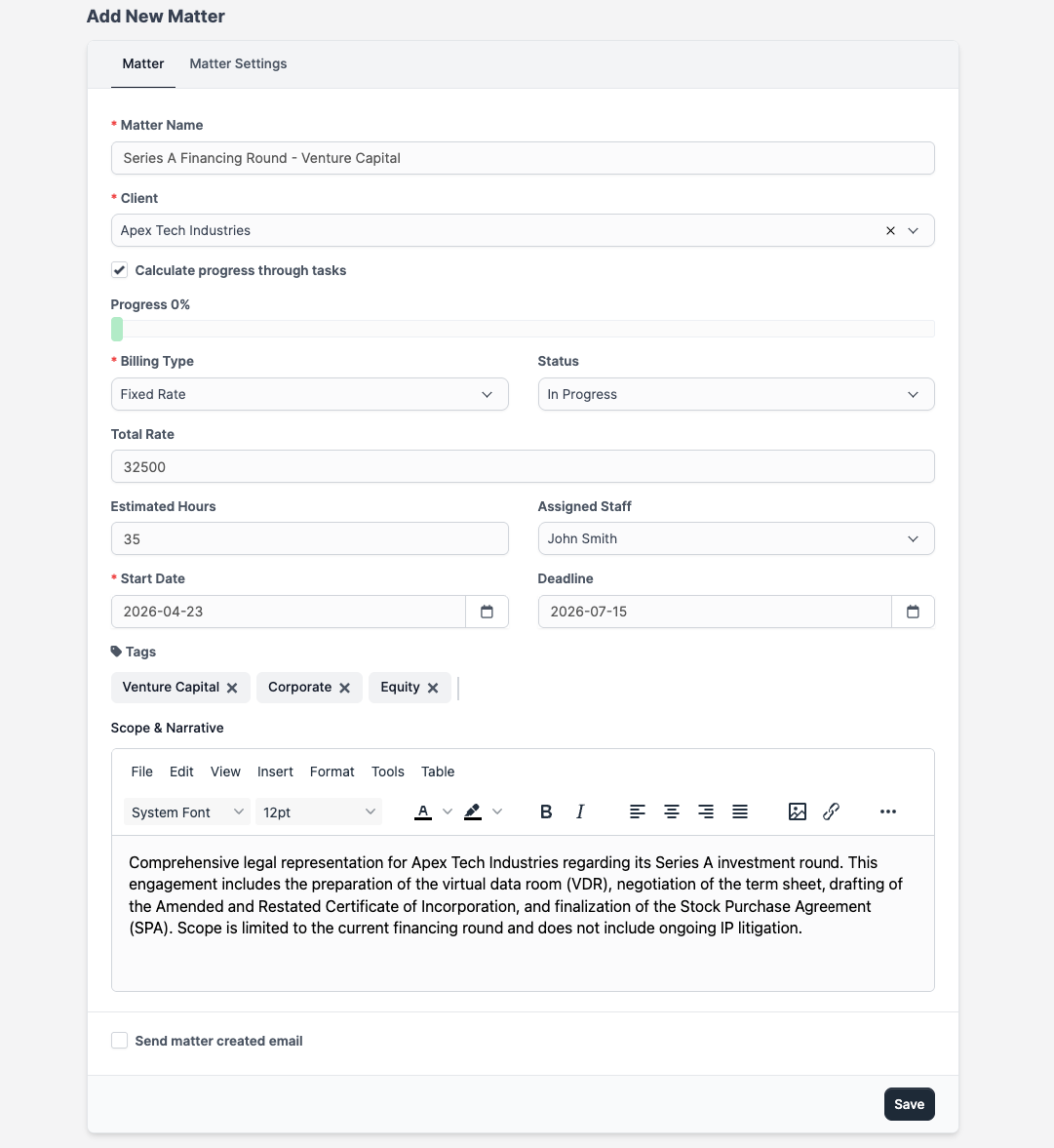
Click Save to create the matter.
From a client profile
Open the client's profile and go to the Matters tab. Click New Matter to create a new matter linked to that client.
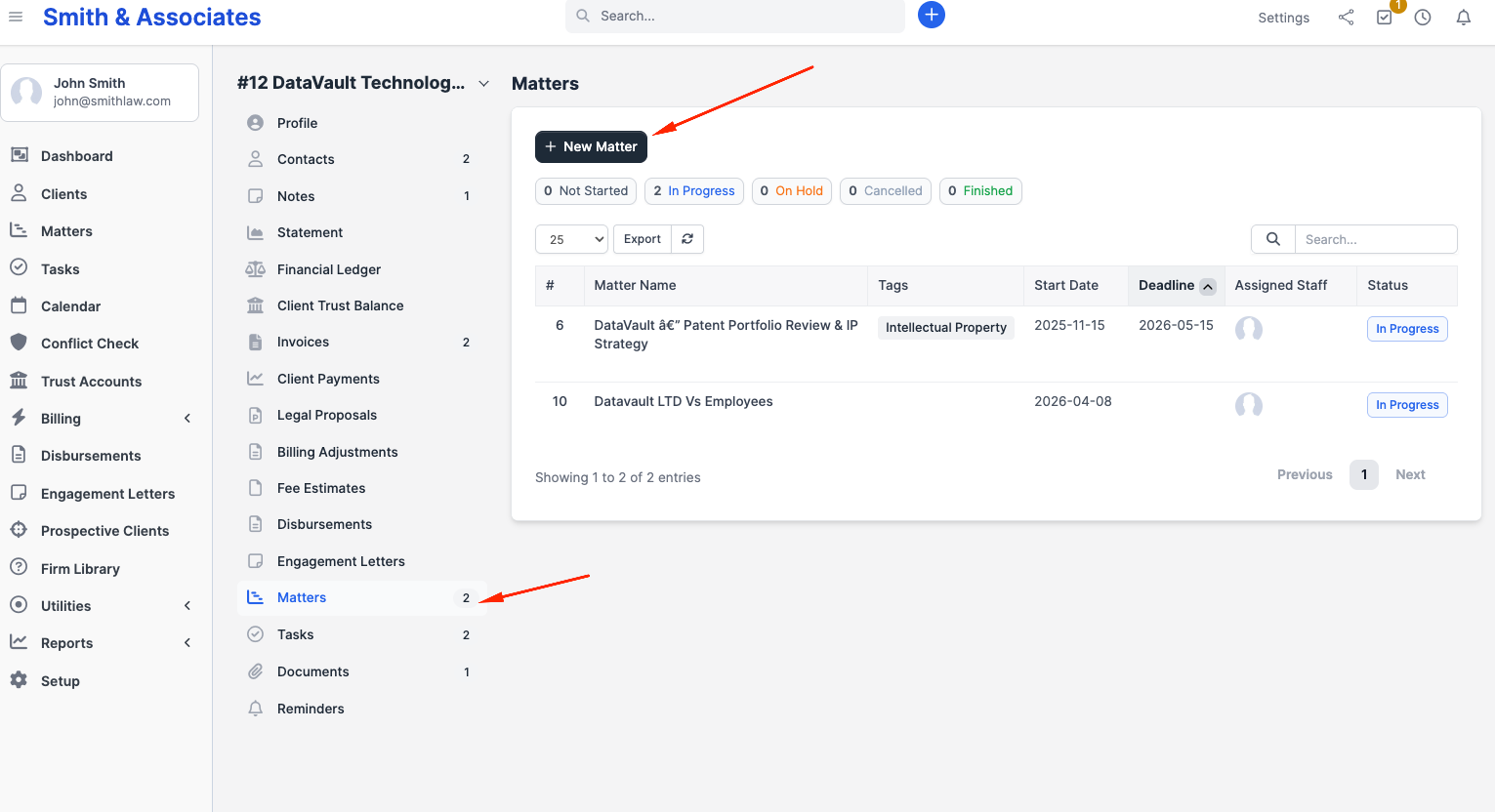
The client field will be pre-filled.
Assigning staff
In the Assigned Staff section of the matter form, add team members who will work on this matter.
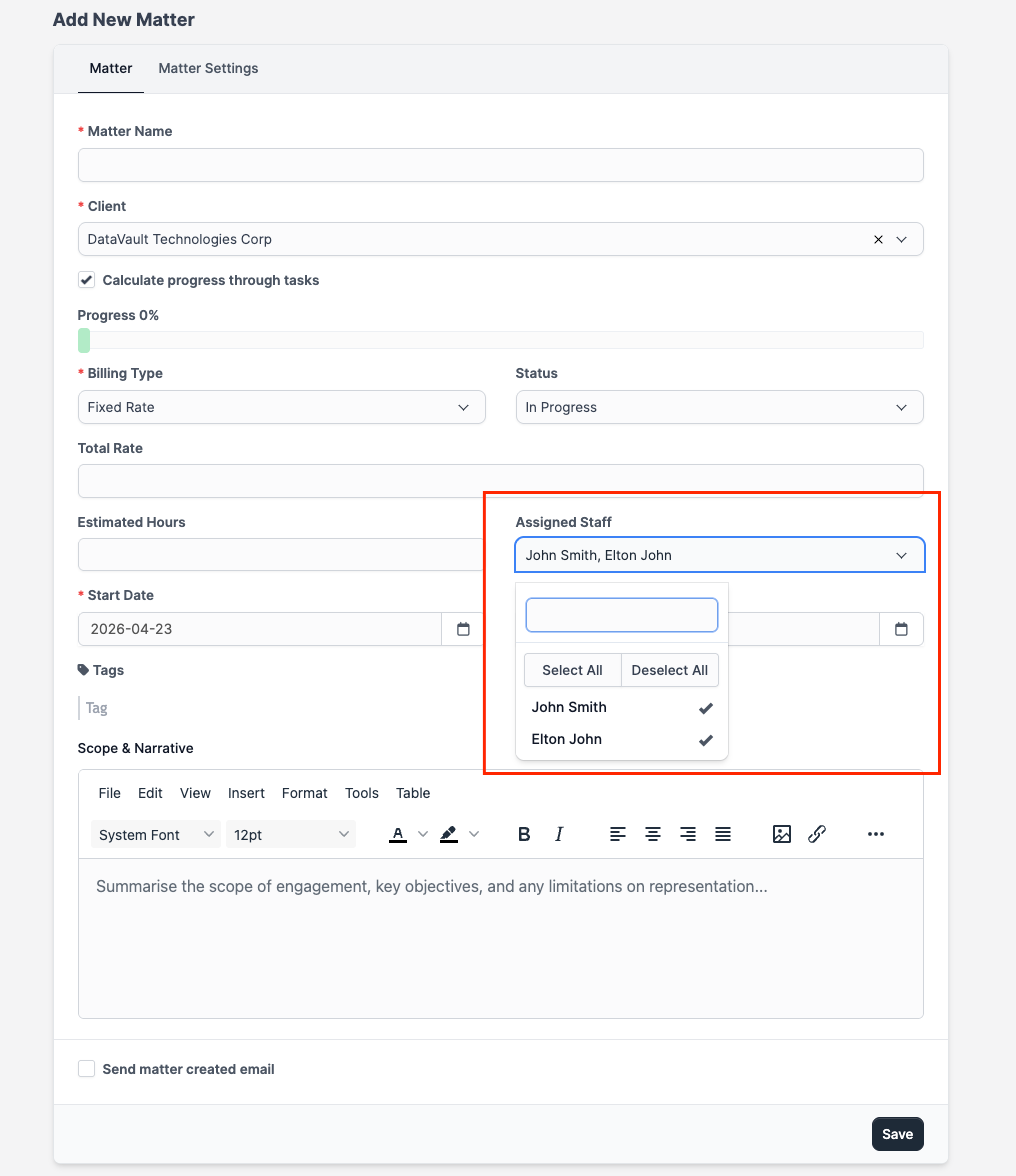
Assigned staff:
- See the matter in their personal matter list
- Can receive notifications about changes
- Appear as assignable on tasks within this matter
On the Multi-Practice plan with granular permissions, staff can only view matters they are assigned to (unless they have "view all" permission).
After creation
Once saved, you land on the matter's Overview tab. From here:
- Add tasks to break the work into steps
- Set key deadlines for court dates or filing deadlines
- Upload documents
- Start logging time
Copying a matter
If you regularly open similar matters (e.g. the same type of immigration application, a standard commercial dispute, a recurring estate plan), copy an existing matter instead of rebuilding from scratch.
From the matter list: click the matter's row action menu and choose Copy Matter.
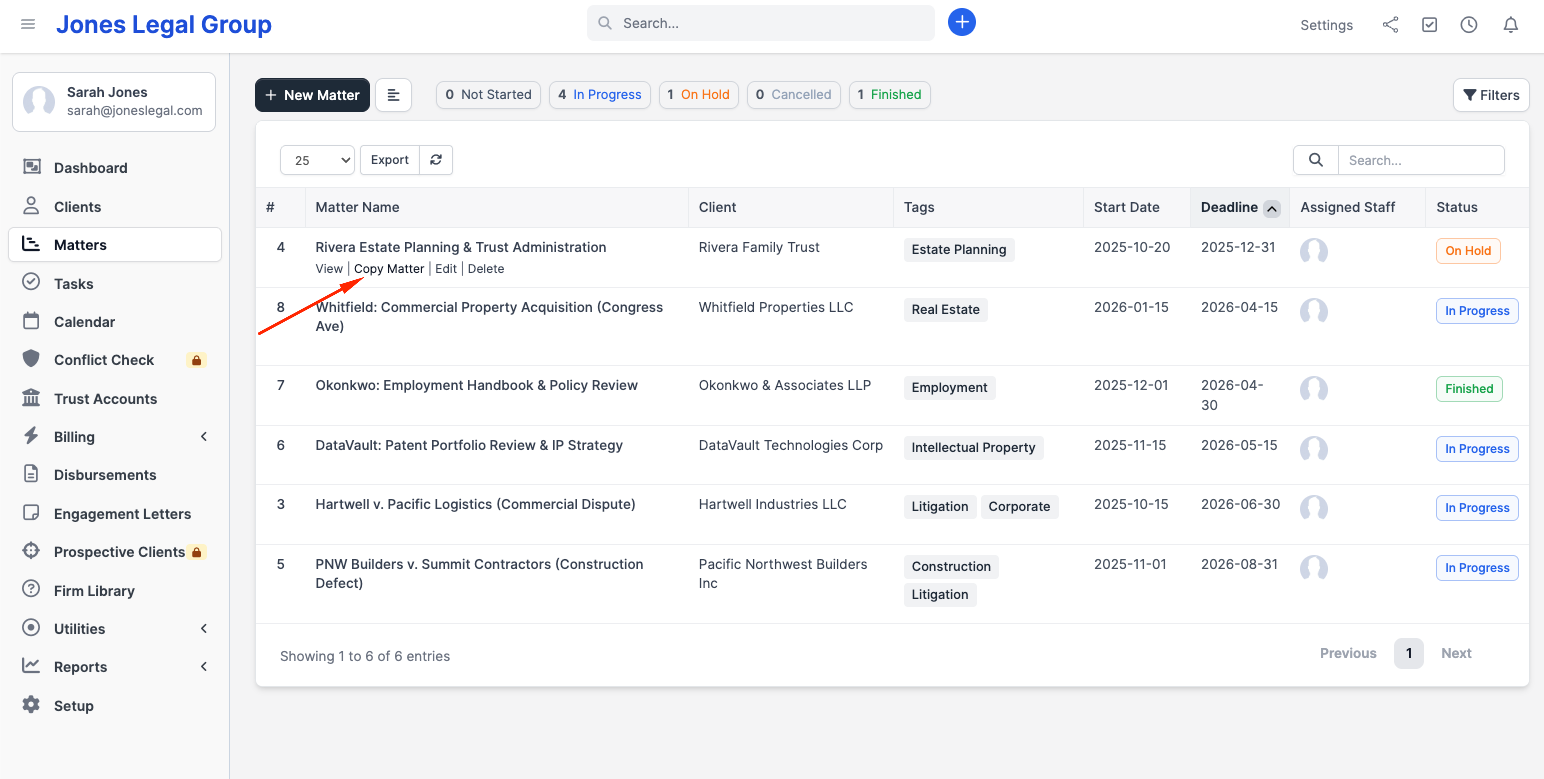
A dialog opens where you choose:
- Client: which client the new matter belongs to. Can be the same client or a different one.
- Tasks status: what status the copied tasks should start in (Not Started is the usual choice).
- Copy task assignees: keep the same staff on each task, or leave assignments blank on the new copy.
- Copy task followers: carry over the follower list on each task.
- Copy checklist items: bring across the subtask checklists.
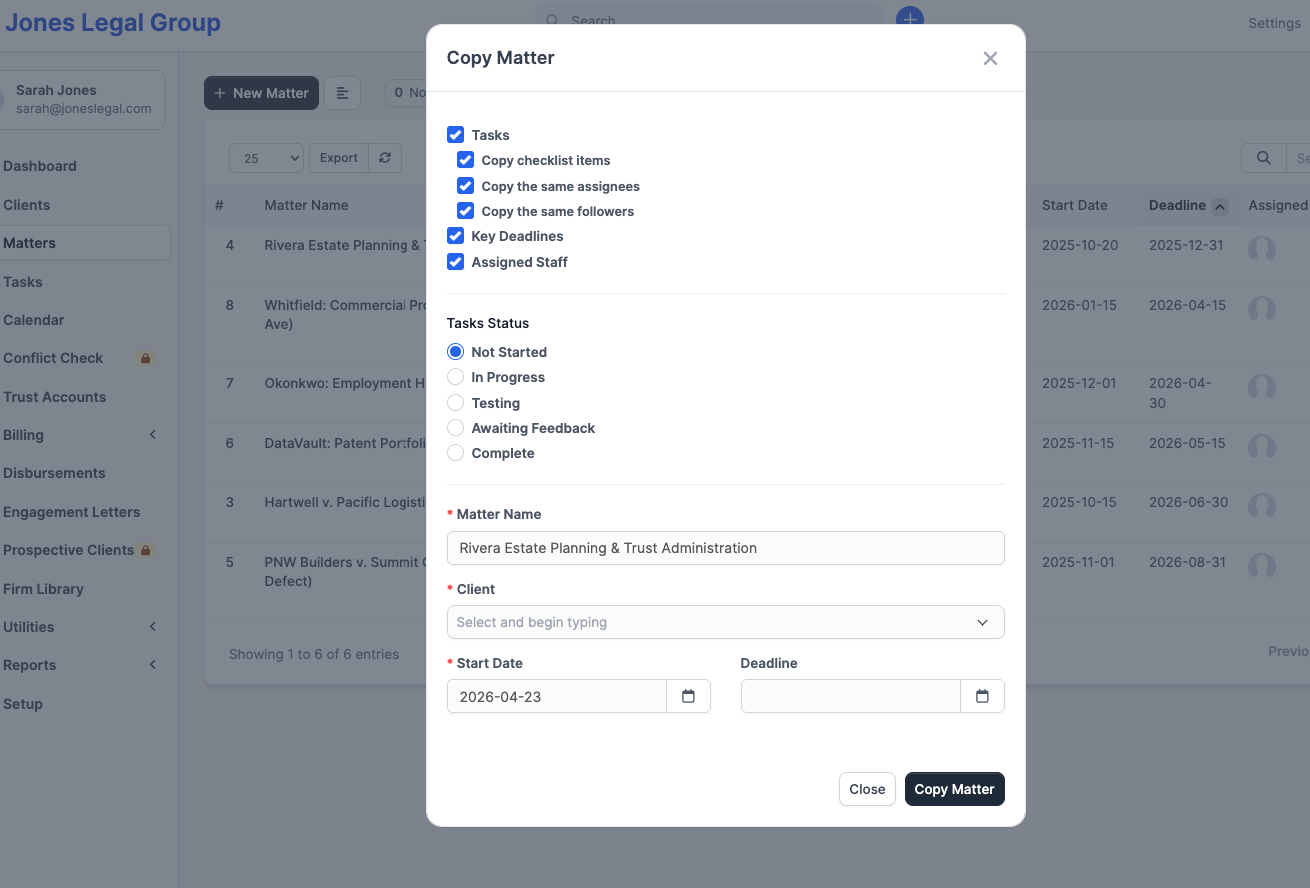
Click Copy Matter to create the new matter. The matter name, description, start/end dates, staff assignments, tasks, and milestones are duplicated. Time entries, invoices, expenses, and file uploads are not copied. Those belong to the original matter's history and don't make sense on a fresh engagement.
Use this when you have a "template" matter kept around as a reference. Keep it in a dedicated "Templates" client or a specific group and copy from it each time.
Scope & Narrative: using reusable tokens
The Description (Scope & Narrative) field is a rich text editor. Anything you type stays as-is for your team. When the matter description is rendered to the client (in their portal or on an exported PDF), CaseFlow substitutes merge-field tokens with real values.
This lets you write once and reuse. For example:
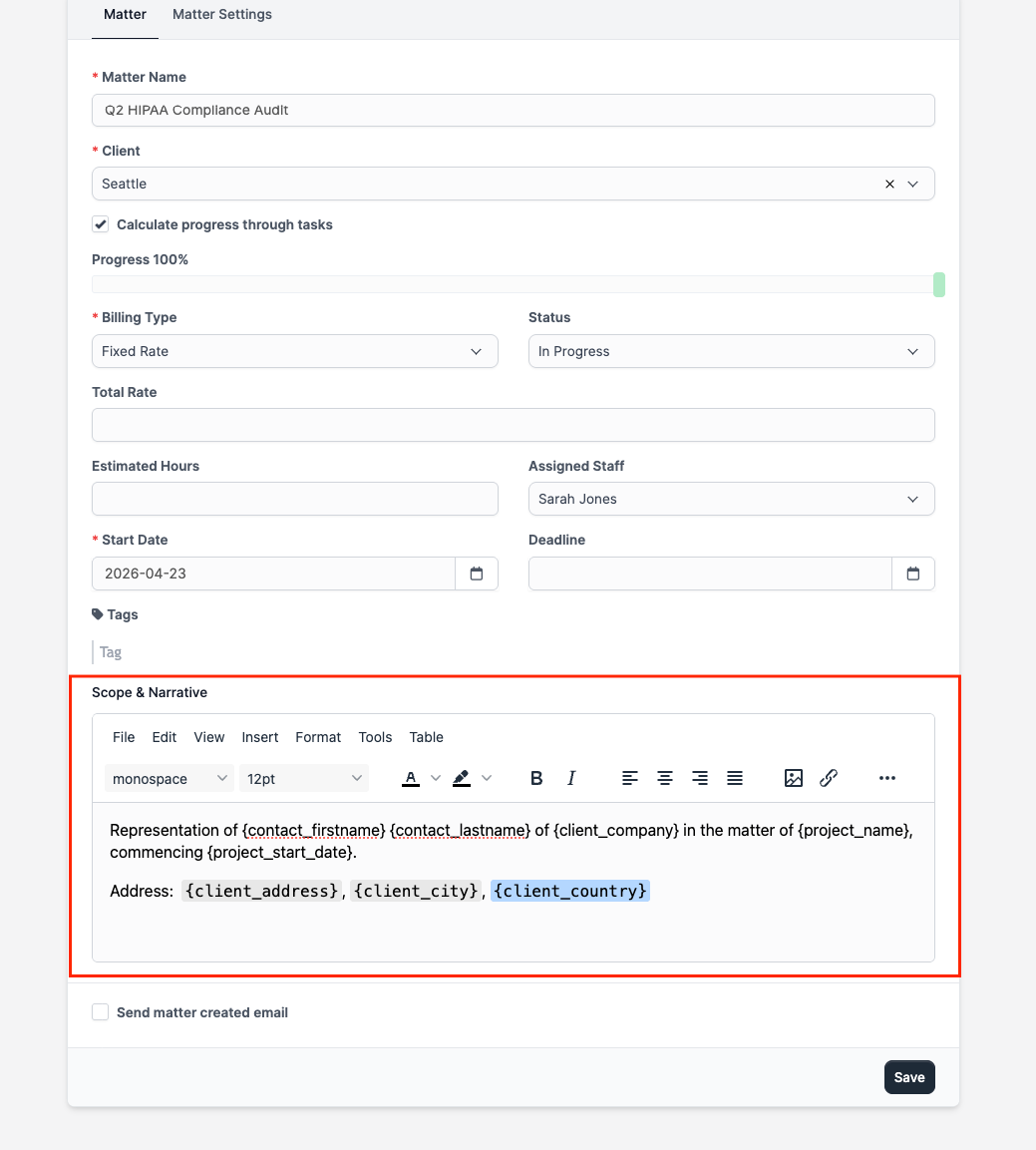
When a client views this in the portal, they see their own name and company filled in automatically as shown in the image below for the client whose matter is in the image above.
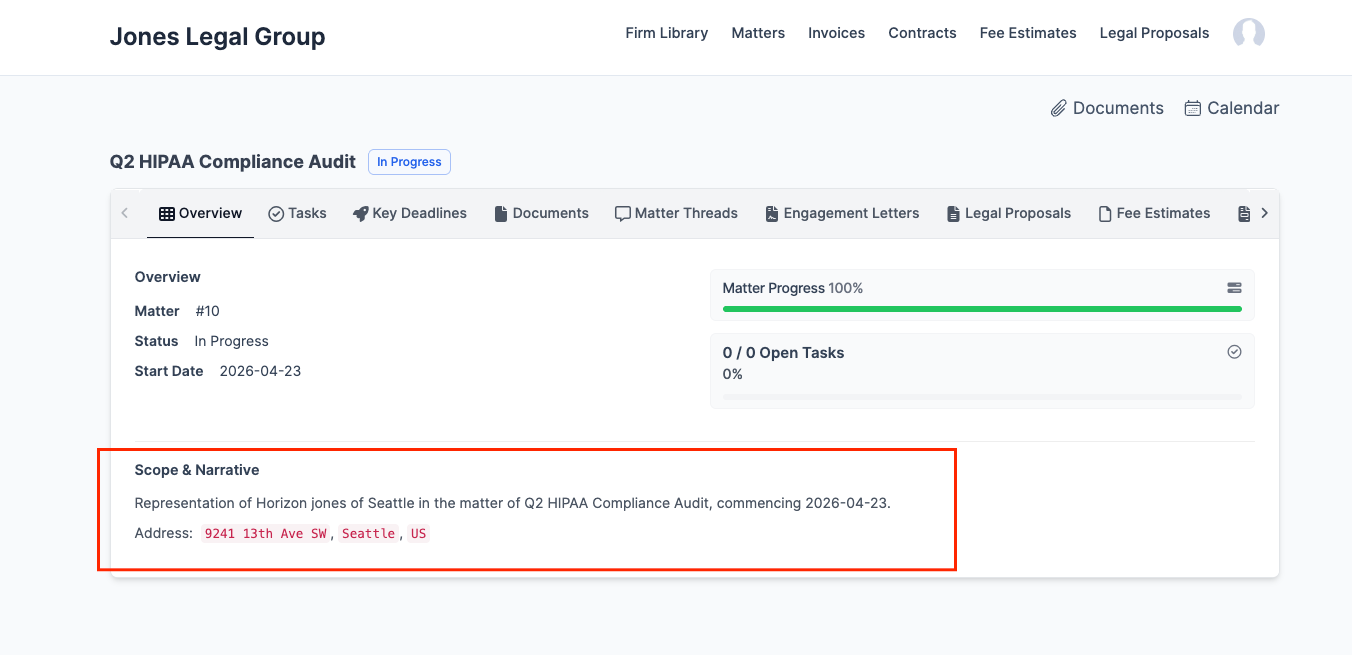
Supported tokens
| Token | Expands to |
|---|---|
{client_company} | The client's business name (or individual name) |
{client_phonenumber} | Main phone number on file |
{client_address}, {client_city}, {client_state}, {client_zip}, {client_country} | Address components |
{client_vat_number} | Tax ID |
{contact_firstname}, {contact_lastname} | The client's primary contact |
{contact_email}, {contact_phonenumber}, {contact_title} | Primary contact details |
{project_name} | This matter's name |
{project_start_date}, {project_deadline} | Matter dates |
{project_status} | Current stage |
Any custom fields you have configured on clients or matters are also available as {field_slug} tokens.
Unknown tokens are left as-is. Typing {claim_number} in the description will render literally as {claim_number} in the client's view, not silently blank out. This prevents accidental data loss when a lawyer experiments with tokens that don't exist yet.
Pasting from Word
The Scope & Narrative editor accepts pasted text from Microsoft Word, Google Docs, and Apple Pages. CaseFlow automatically strips the Office-specific styling that Word injects so your pasted content renders cleanly in the portal and on PDFs. You can paste a whole section of an engagement letter and keep formatting like headings, bold, italics, bullet lists, and links.
If you need to preserve formatting exactly as it appears in Word, use File > Export > PDF in Word and attach the PDF to the matter's Documents tab instead of pasting the content into the description.