
Firm settings
Go to Setup > Settings to access the main settings page. A left-hand sidebar groups every option into six sections: General, Billing & Finance, Configure Features, Security, Other, and Misc. Click any item in the sidebar to jump to its tab. Each tab has its own Save button at the bottom; changes take effect immediately.
General
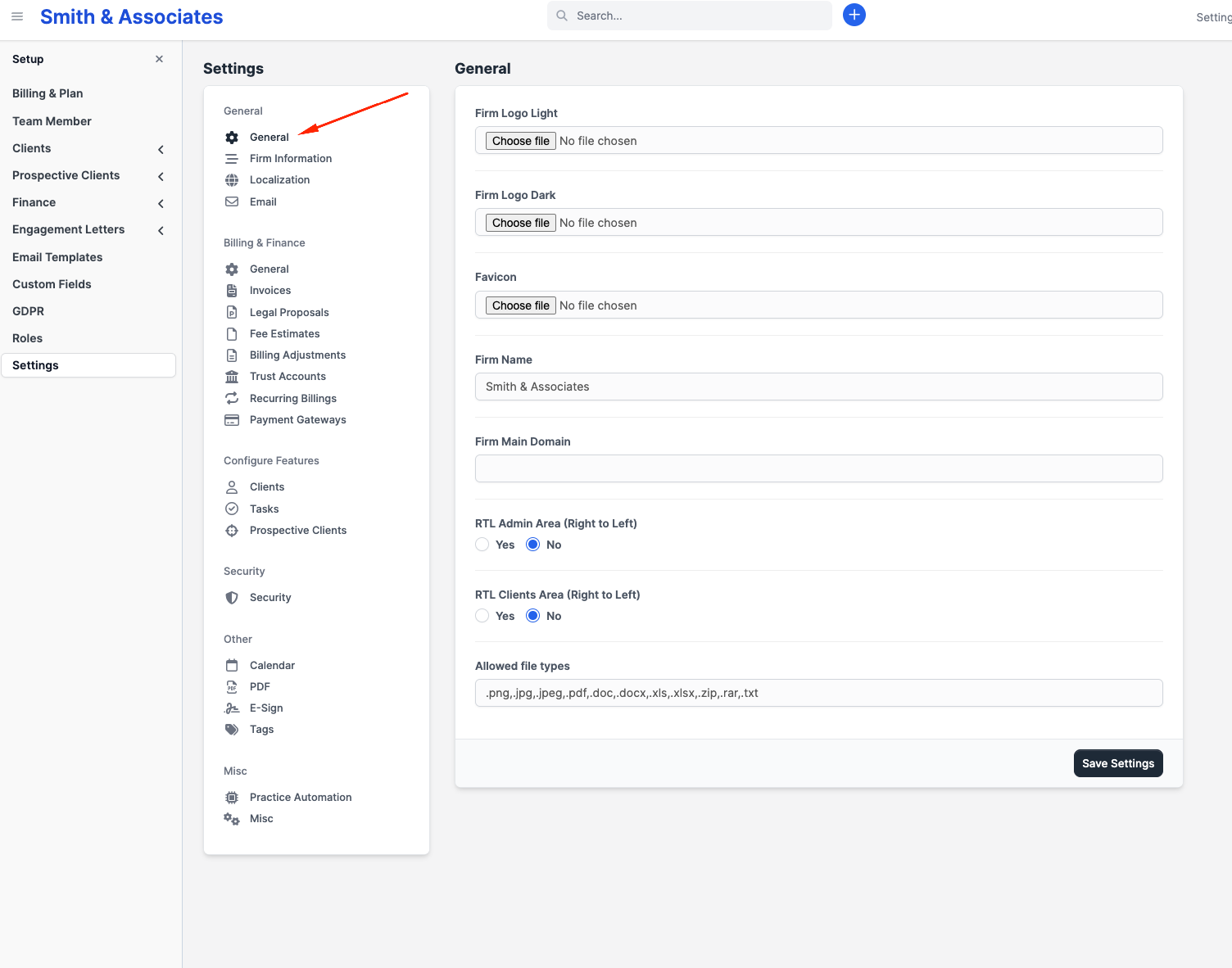
General
| Field | What it does |
|---|---|
| Firm Logo (Light) | Logo used on the light-theme admin panel and the client portal header. |
| Firm Logo (Dark) | Logo used when the admin panel or portal is in dark mode. |
| Favicon | Small icon shown in browser tabs when staff or clients have CaseFlow open. |
| Firm Name | The firm's display name. Used throughout the admin panel and on every PDF or email the firm sends. |
| Firm Main Domain | Public website URL for the firm. Used in emails and on documents that link back to the firm site. |
| RTL Admin Area | Switches the admin panel to right-to-left layout (for Arabic, Hebrew, etc.). |
| RTL Clients Area | Same as above but for the client portal. |
| Allowed file types | Comma-separated list of file extensions that clients can upload through the portal. |
Firm Information
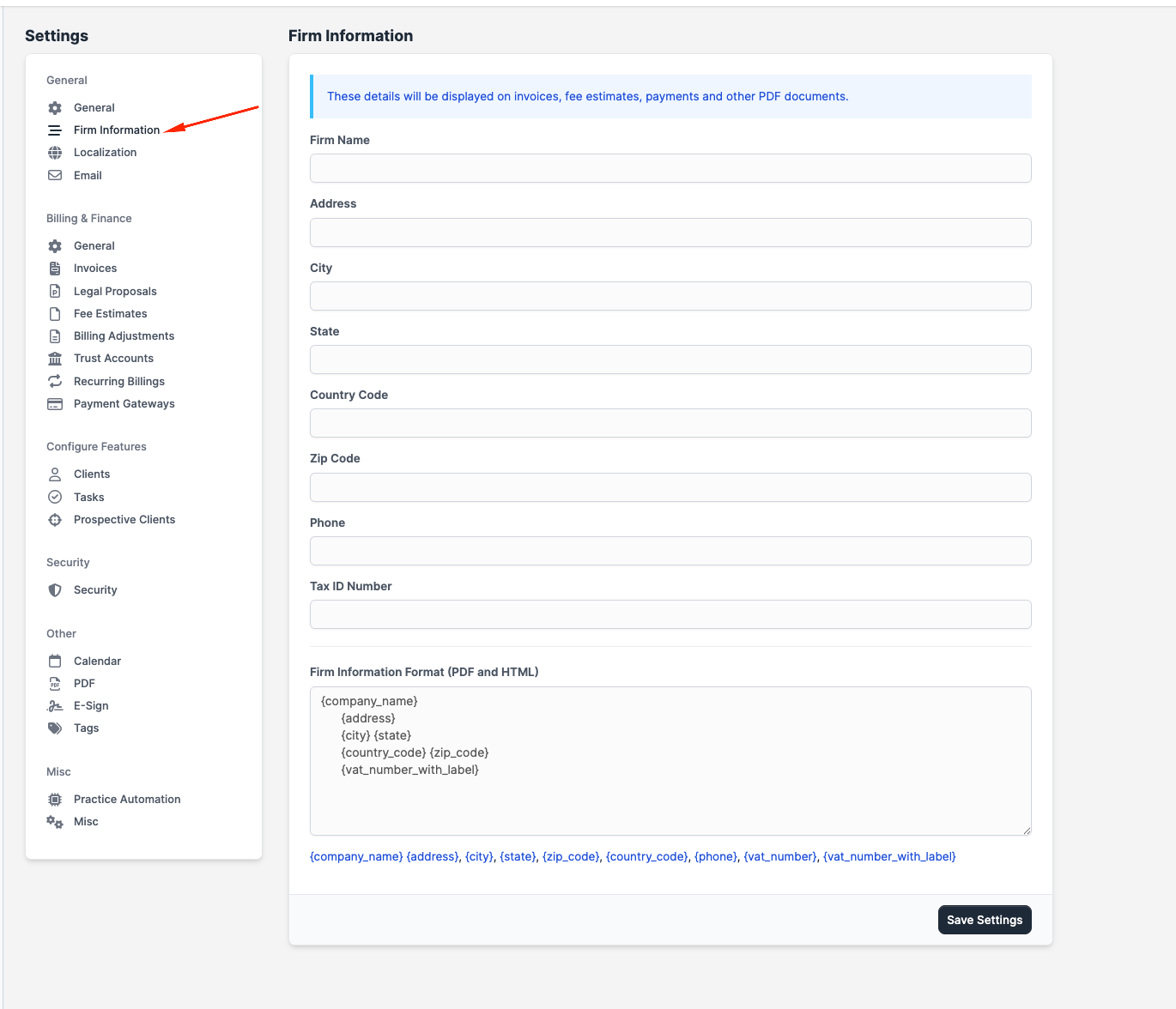
This is the official firm record used on every invoice, fee estimate, legal proposal, billing adjustment, and engagement letter PDF.
| Field | What it does |
|---|---|
| Firm Name | The legal firm name as it should appear on PDFs and emails. |
| Address, City, State, Zip Code, Country Code | Full mailing address. |
| Phone | Main firm phone number. |
| Tax ID Number | The firm's tax ID. Appears on PDF documents if filled. |
| Custom Fields | Any firm-level custom fields added at Setup > Custom Fields appear here for editing. |
| Company Info Format | Controls how the firm block is laid out on PDFs. Use the merge fields ({company_name}, {address}, {phone}, {vat_number}, etc.) to rearrange or relabel lines. |
Localization
| Field | What it does |
|---|---|
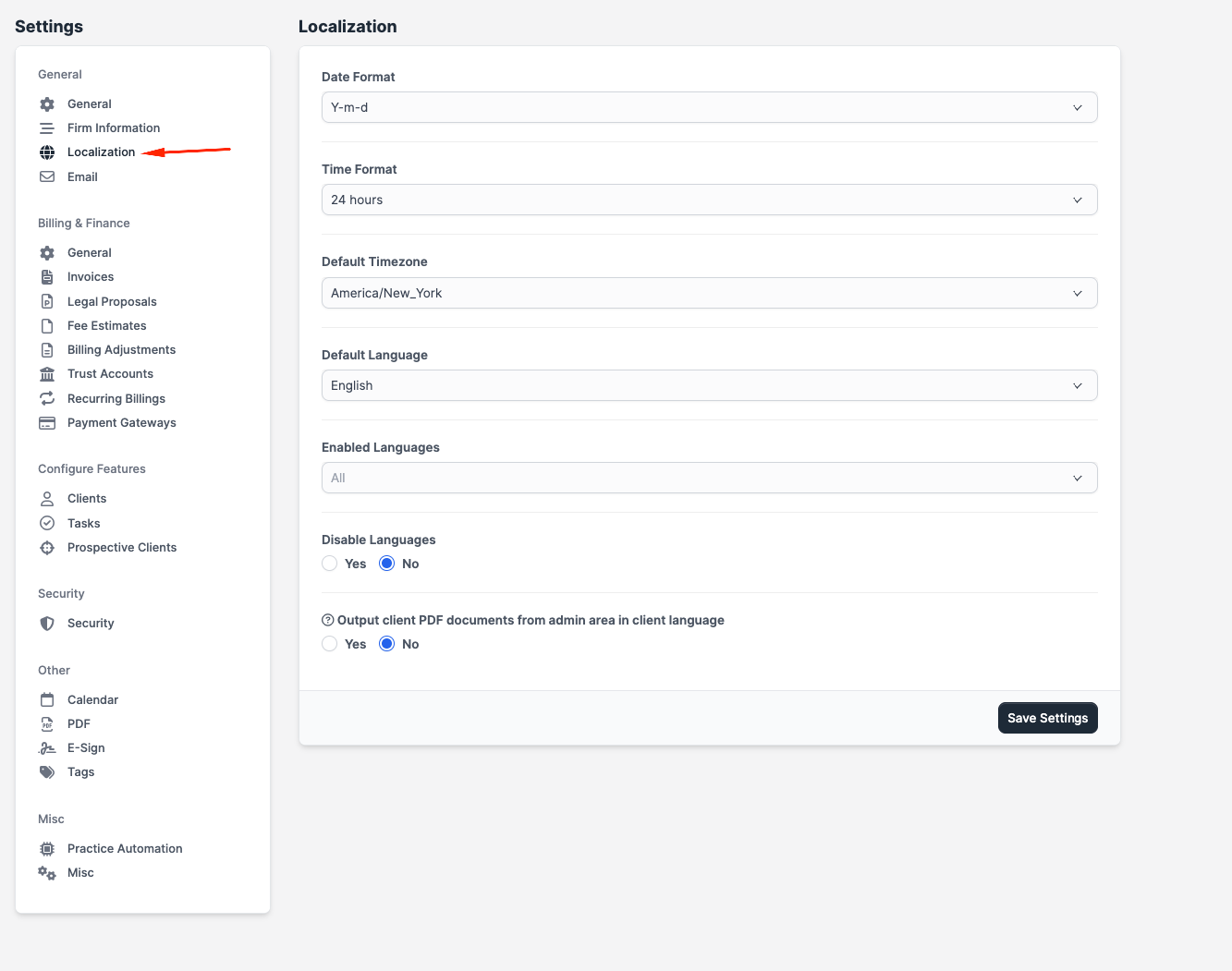
| Date Format | Choose between MM/DD/YYYY, DD/MM/YYYY, and other regional formats. |
| Time Format | 12-hour or 24-hour clock. |
| Default Timezone | Used for every timestamp the system records and displays. |
| Default Language | The language new staff and clients see until they pick a personal preference. |
| Enabled Languages | Which languages appear in the language switcher. |
| Disable Languages | Hide the language switcher entirely if you only need one language. |
| Output client PDF documents in client language | When on, PDFs generated for a client (invoice, estimate, etc.) are rendered in the client's language regardless of who generates them. |
Email
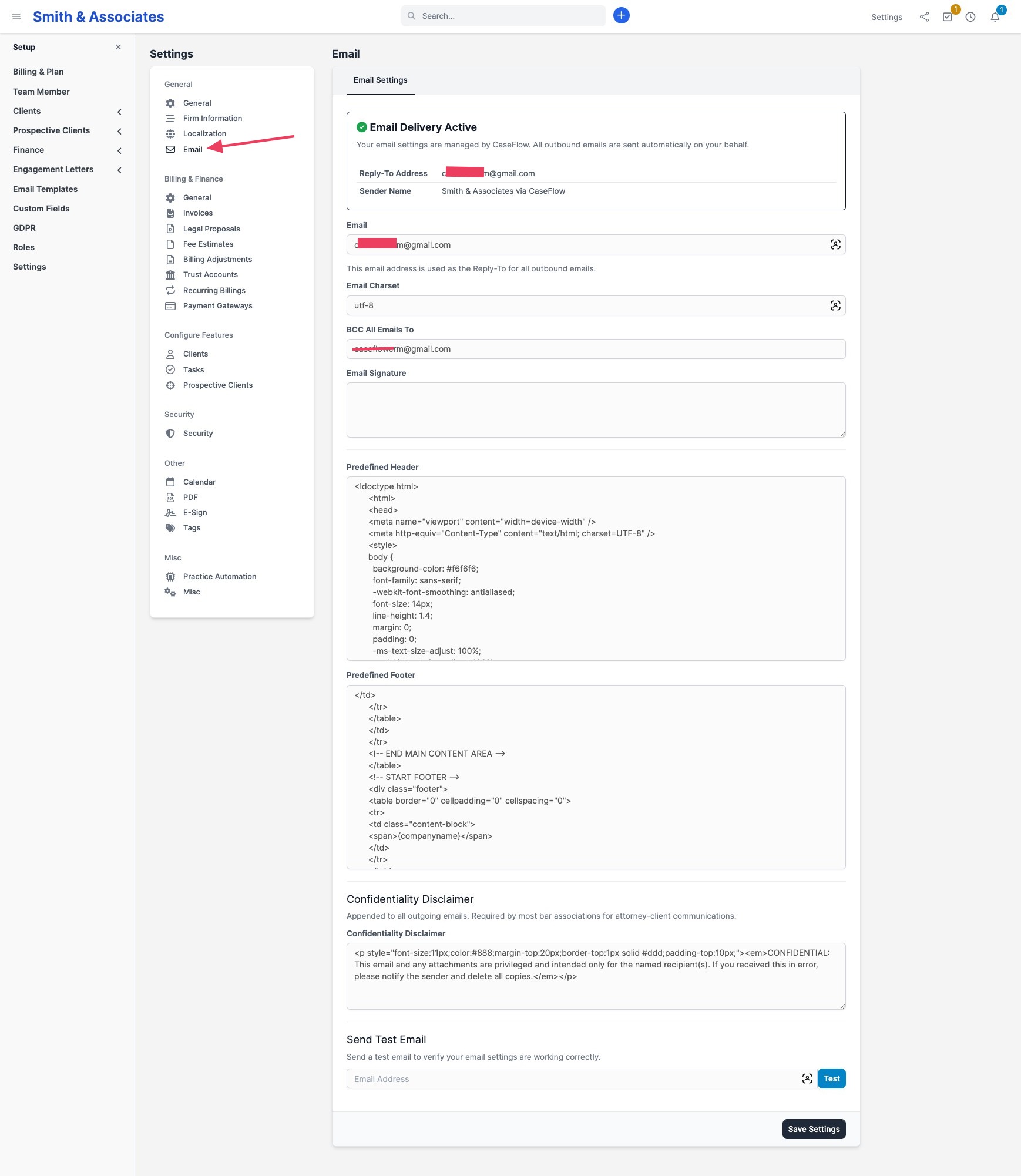
These controls customise how staff-sent emails look. Outgoing delivery is already configured at the platform level.
| Field | What it does |
|---|---|
| Reply-To Address | Replies to firm emails go here. |
| BCC All Emails To | Every outgoing email is silently copied to this address (useful for archiving or compliance). |
| Email Signature | Default signature block appended to staff-composed emails. |
| Email Header | HTML or text that appears at the top of every outgoing email. |
| Email Footer | HTML or text that appears at the bottom of every outgoing email. |
| Confidentiality Disclaimer | Legal disclaimer appended to every outgoing email. Ships with a sensible default; edit it to match your jurisdiction, or clear the field to remove it entirely. |
| Send Test Email | Sends a test message so you can verify how headers, footers, and signatures render. |
Billing & Finance
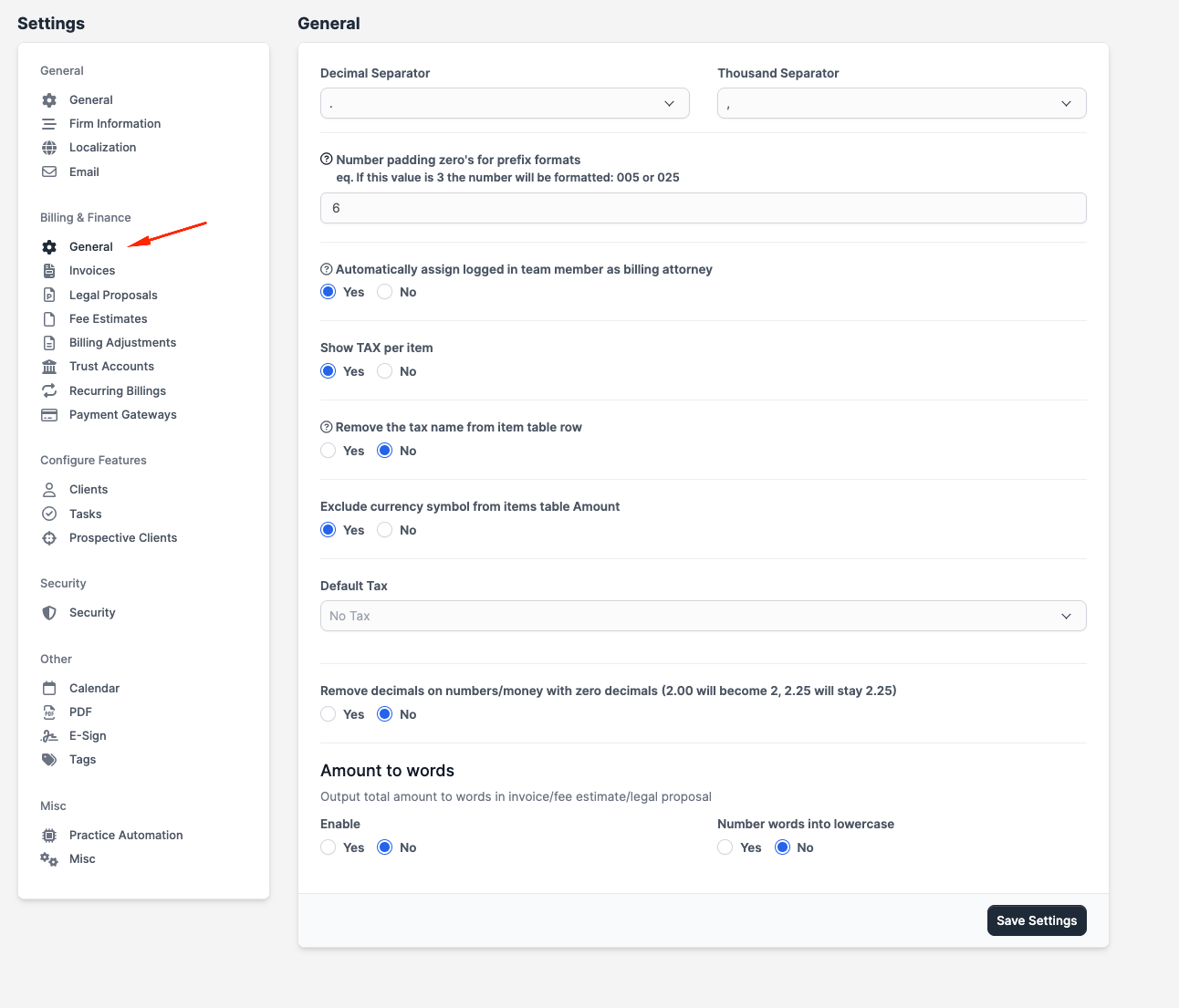
General
| Field | What it does |
|---|---|
| Decimal Separator | Character used between whole and fractional amounts (comma or period). |
| Thousand Separator | Character grouping thousands (comma, period, apostrophe, space, or none). |
| Number Padding for Prefix Formats | How many leading zeros to pad invoice/estimate/proposal numbers (e.g. 005 vs 00005). |
| Auto-assign current team member as billing attorney | When on, the logged-in staff member is set as billing attorney on new invoices, fee estimates, and legal proposals. |
| Show Tax Per Item | When on, each line item shows its applicable tax. |
| Remove Tax Name from Item Row | Shows the tax percentage only, hiding the tax label. |
| Exclude Currency Symbol from Item Amounts | Strips the currency symbol from line-item amounts in tables. |
| Default Tax | The tax rate pre-selected on new invoices, fee estimates, and legal proposals. |
| Remove Decimals on Zero Amounts | 2.00 renders as 2; 2.25 is unchanged. |
| Amount to Words: Enable | When on, the document total is also spelled out in words on the PDF. |
| Amount to Words: Lowercase | Renders the spelled-out total in lowercase. |
Invoices
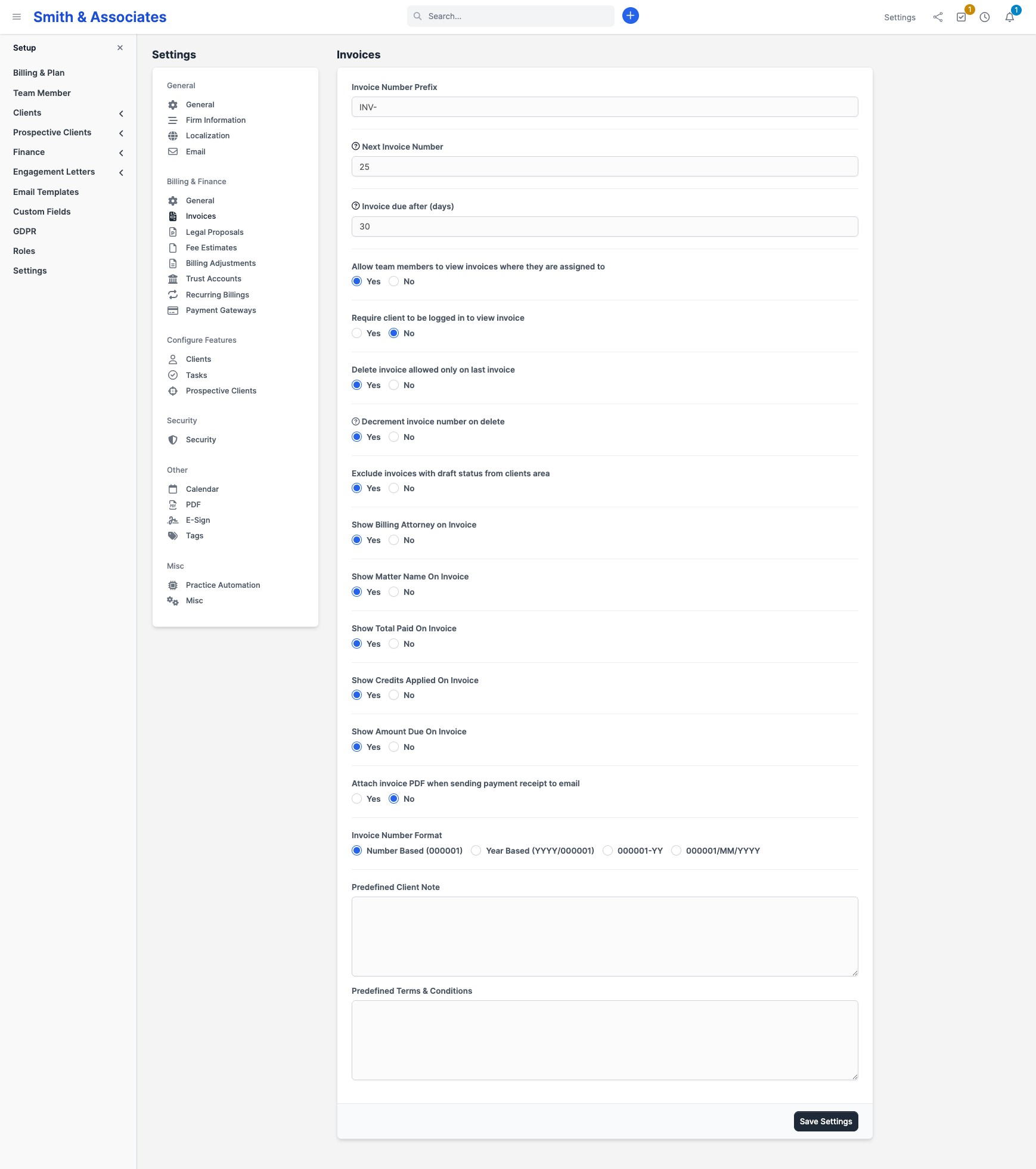
| Field | What it does |
|---|---|
| Invoice Number Prefix | Text prefixed to every invoice number (e.g. INV-). |
| Next Invoice Number | Where invoice numbering should start (useful when migrating from another system). |
| Invoice Number Format | Number-based, year-based, short-year-based, or year/month-based numbering. |
| Invoice Due After (days) | Default payment-due window for new invoices. |
| Allow team members to view assigned invoices | Non-admins can see invoices they are assigned to; otherwise only admins see all. |
| Require Client Login to View Invoice | When on, anonymous invoice links are disabled — clients must log in to the portal. |
| Delete Invoice Allowed Only on Last Invoice | Prevents gaps in your invoice numbering by only allowing the most recent invoice to be deleted. |
| Decrement Invoice Number on Delete | When the last invoice is deleted, the next invoice number rolls back by one. |
| Hide Draft Invoices from Clients Area | Clients can't see invoices still in Draft. |
| Show Billing Attorney on Invoice | Prints the assigned billing attorney's name on the PDF. |
| Show Matter Name on Invoice | Prints the linked matter's name on the PDF. |
| Show Total Paid on Invoice | Prints the running paid total. |
| Show Credits Applied on Invoice | Prints any billing adjustments applied. |
| Show Amount Due on Invoice | Prints the outstanding balance. |
| Attach Invoice PDF to Payment Receipt | Bundles the invoice PDF with the receipt email. |
| Predefined Client Note | Default note pre-filled on new invoices. |
| Predefined Terms & Conditions | Default Ts&Cs pre-filled on new invoices. |
Legal Proposals
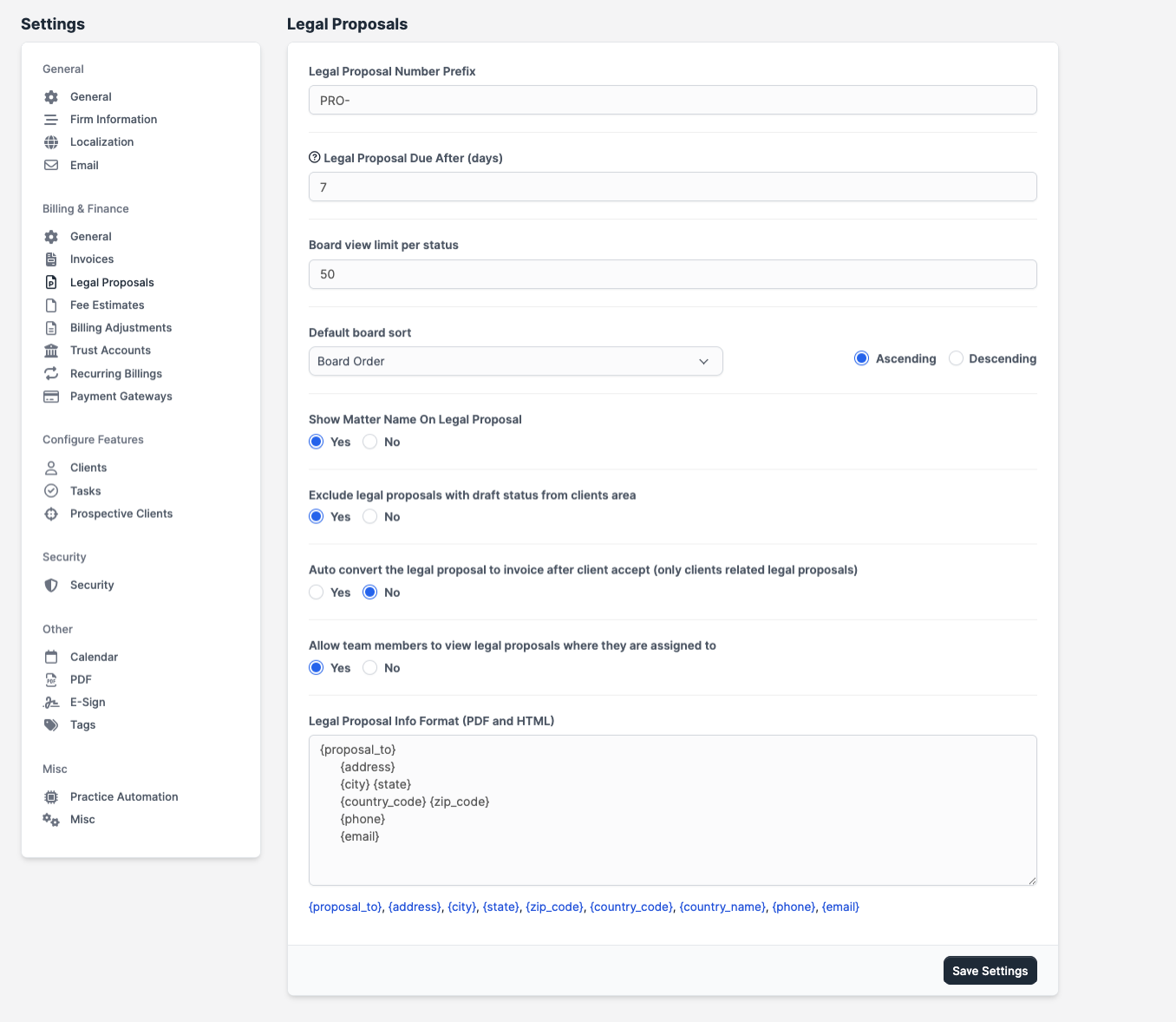
| Field | What it does |
|---|---|
| Legal Proposal Number Prefix | Text prefix on proposal numbers. |
| Legal Proposal Due After (days) | Default expiry window. |
| Board View Limit Per Status | Maximum cards shown in each column on the proposal board. |
| Default Board Sort | Initial sort: Date Created, Proposal Date, Board Order, or Open Till. |
| Sort Order | Ascending or descending. |
| Show Matter Name on Legal Proposal | Prints the linked matter on the PDF. |
| Hide Draft Proposals from Clients Area | Drafts stay hidden until finalised. |
| Auto-convert Proposal to Invoice on Acceptance | When the client accepts, CaseFlow generates the invoice automatically. |
| Allow team members to view assigned proposals | Non-admins can see proposals they are assigned to. |
| Legal Proposal Info Format | Client-block layout on the proposal PDF, using merge fields. |
Fee Estimates
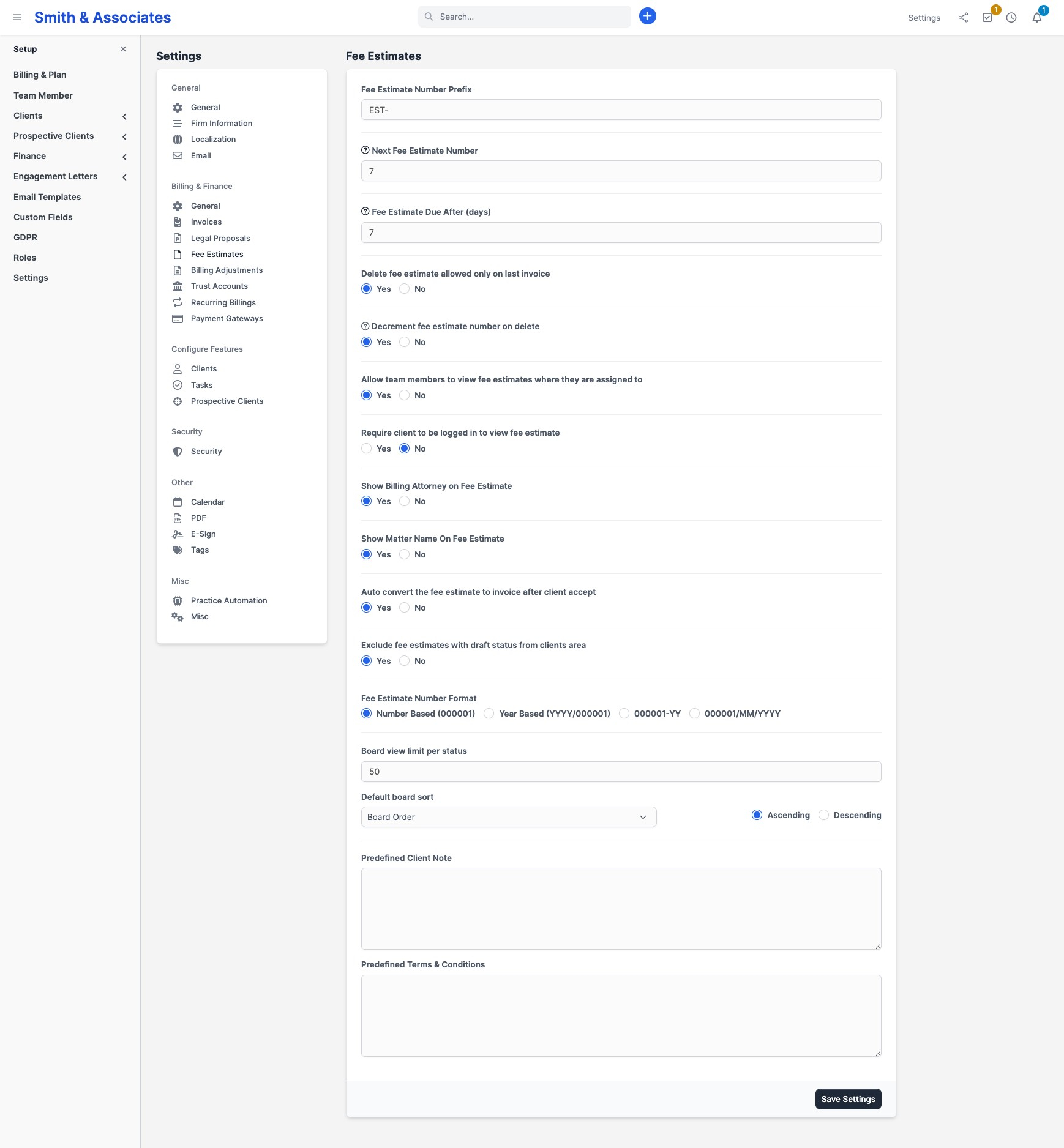
| Field | What it does |
|---|---|
| Fee Estimate Number Prefix | Text prefix on estimate numbers. |
| Next Fee Estimate Number | Where numbering should start. |
| Fee Estimate Number Format | Number-based, year-based, short-year-based, or year/month-based. |
| Fee Estimate Due After (days) | Default expiry window. |
| Delete Allowed Only on Last Estimate | Same gap-prevention rule as invoices. |
| Decrement Number on Delete | Rolls the next-number counter back when the last estimate is deleted. |
| Allow team members to view assigned estimates | Non-admins can see estimates they are assigned to. |
| Require Client Login to View Estimate | Disables anonymous links. |
| Show Billing Attorney on Estimate | Prints the assigned attorney on the PDF. |
| Show Matter Name on Estimate | Prints the linked matter on the PDF. |
| Auto-convert Estimate to Invoice on Acceptance | When the client accepts, CaseFlow generates the invoice automatically. |
| Hide Draft Estimates from Clients Area | Drafts stay hidden until finalised. |
| Board View Limit Per Status | Maximum cards shown per column on the estimate board. |
| Default Board Sort | Initial sort: Date Created, Estimate Date, Board Order, or Expiry. |
| Sort Order | Ascending or descending. |
| Predefined Client Note | Default note pre-filled on new estimates. |
| Predefined Terms & Conditions | Default Ts&Cs pre-filled on new estimates. |
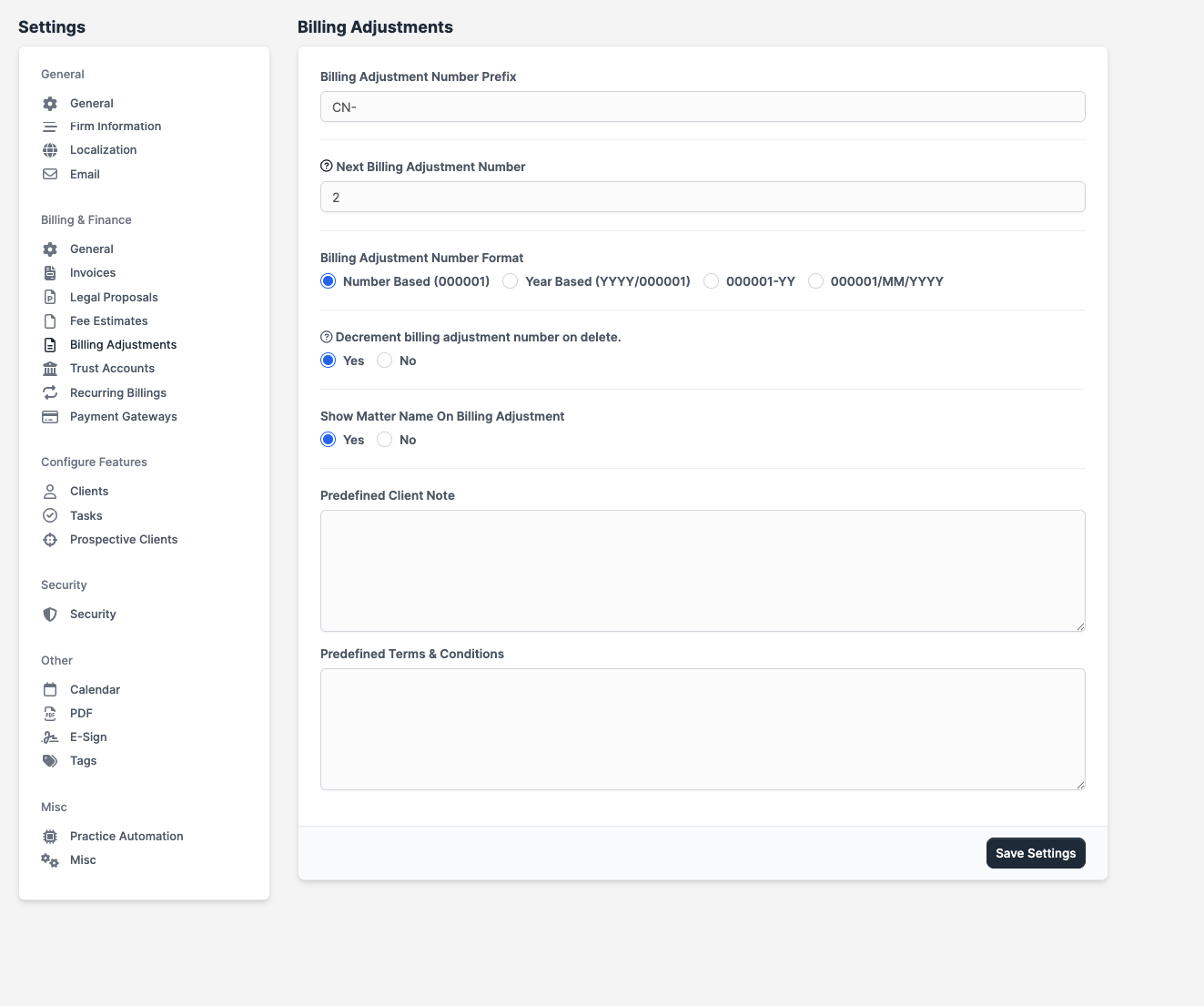
Billing Adjustments
| Field | What it does |
|---|---|
| Billing Adjustment Number Prefix | Text prefix on adjustment numbers. |
| Next Billing Adjustment Number | Where numbering should start. |
| Billing Adjustment Number Format | Number-based, year-based, short-year-based, or year/month-based. |
| Decrement Number on Delete | Rolls the counter back when the most recent adjustment is deleted. |
| Show Matter Name on Billing Adjustment | Prints the linked matter on the PDF. |
| Predefined Client Note | Default note pre-filled on new adjustments. |
| Predefined Terms & Conditions | Default Ts&Cs pre-filled on new adjustments. |
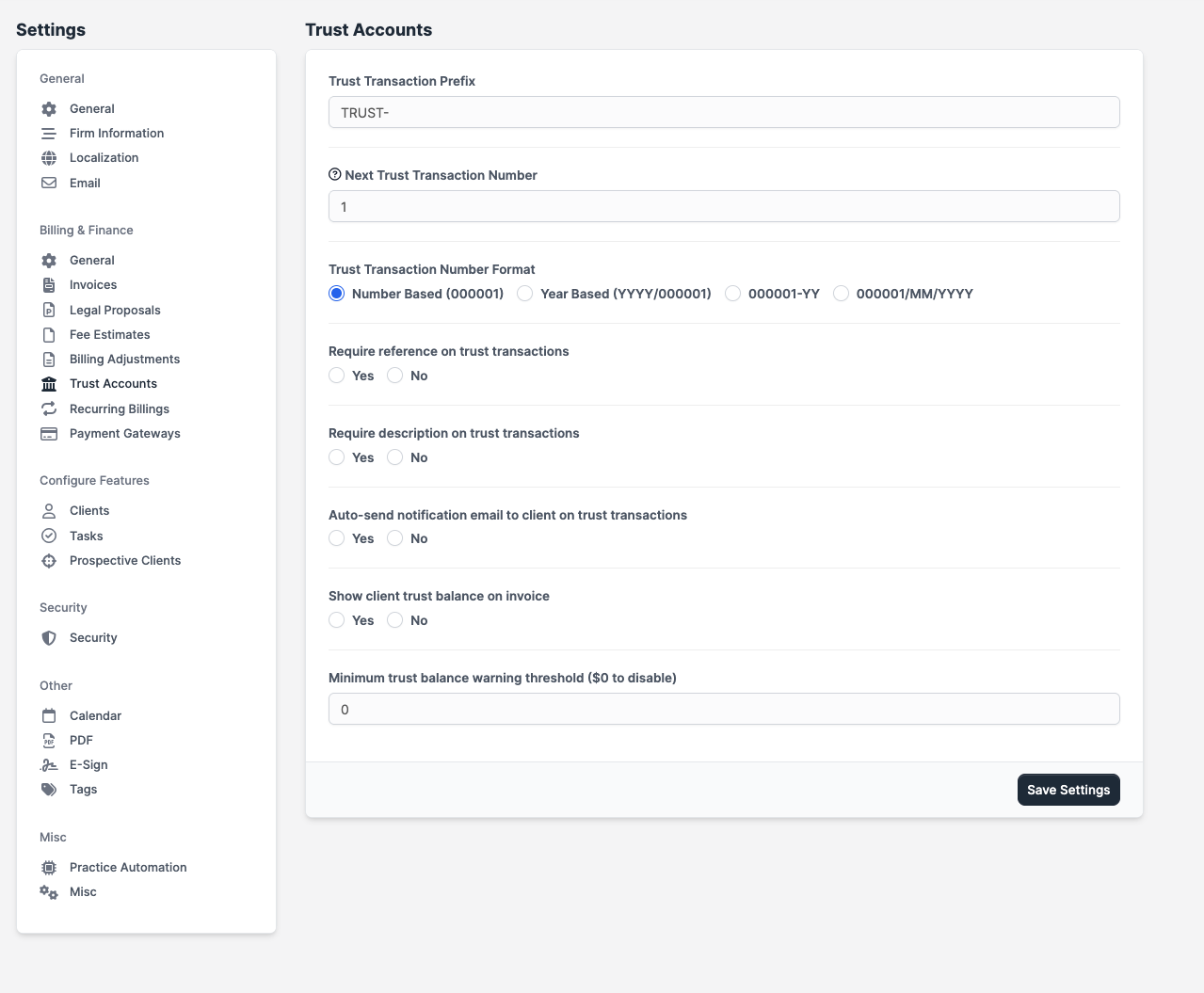
Trust Accounts
| Field | What it does |
|---|---|
| Trust Transaction Prefix | Text prefix on transaction numbers (defaults to TRUST-). |
| Next Trust Transaction Number | Where numbering should start. |
| Trust Transaction Number Format | Number-based, year-based, short-year-based, or year/month-based. |
| Require Reference on Trust Transactions | Staff must enter a reference/ID when recording a trust transaction. |
| Require Description on Trust Transactions | Staff must explain the purpose of each trust transaction. |
| Auto-notify Client on Trust Transactions | Clients get an email every time a trust transaction is recorded against them. |
| Show Client Trust Balance on Invoice | Prints the client's current trust balance on their invoices. |
| Minimum Trust Balance Warning | When the firm's trust balance drops below this amount, staff see a warning. Set to 0 to disable. |
Plan requirement
Trust accounting is available on the Growth plan and above.
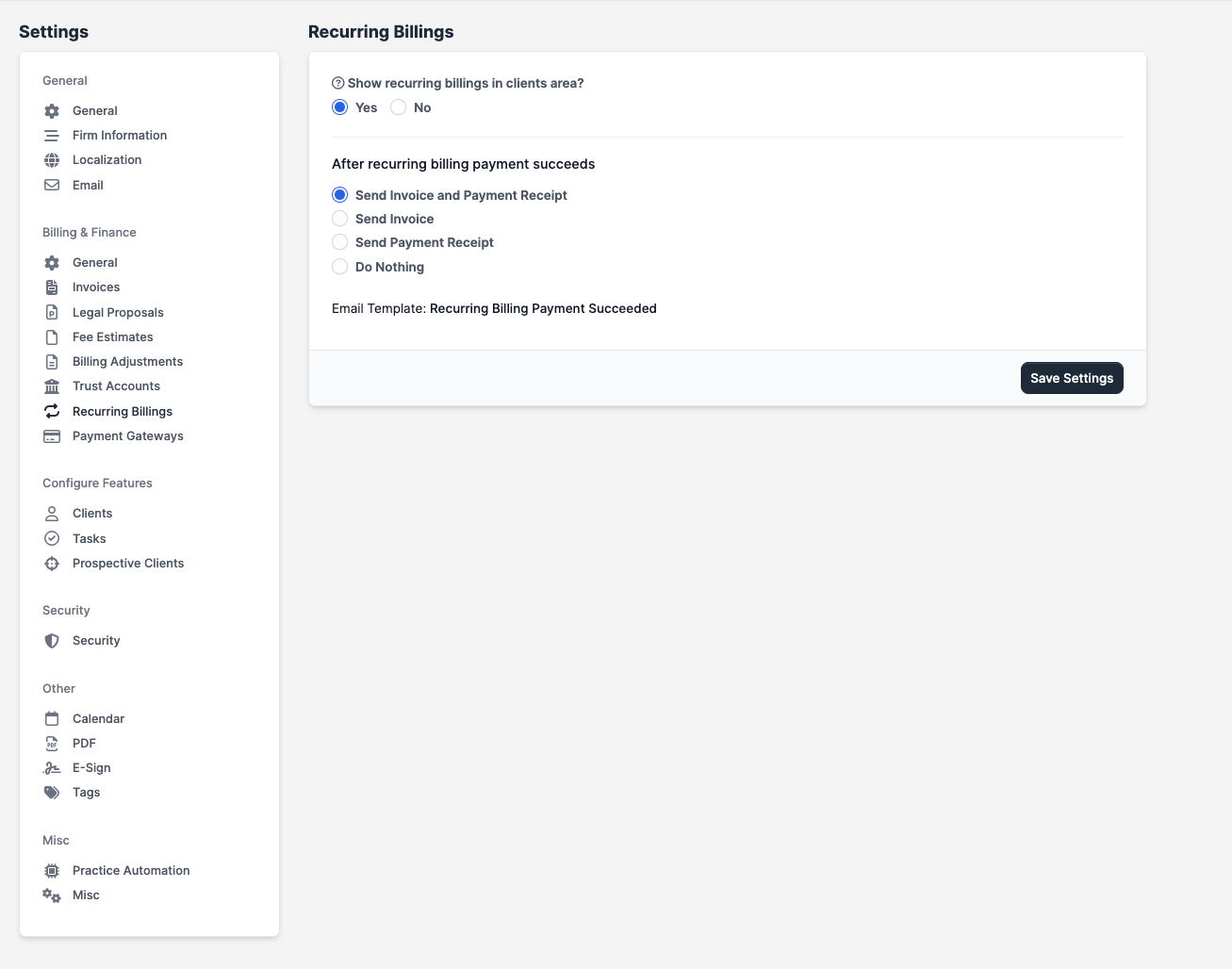
Recurring Billings
| Field | What it does |
|---|---|
| Show Recurring Billings in Clients Area | When on, the primary contact can see and manage active recurring billings in the portal. |
| After Successful Charge: Send Invoice and Receipt | Email the client both the invoice and the receipt. |
| After Successful Charge: Send Invoice Only | Email the client only the invoice. |
| After Successful Charge: Send Receipt Only | Email the client only the receipt. |
| After Successful Charge: Do Nothing | No automatic email. |
Payment Gateways
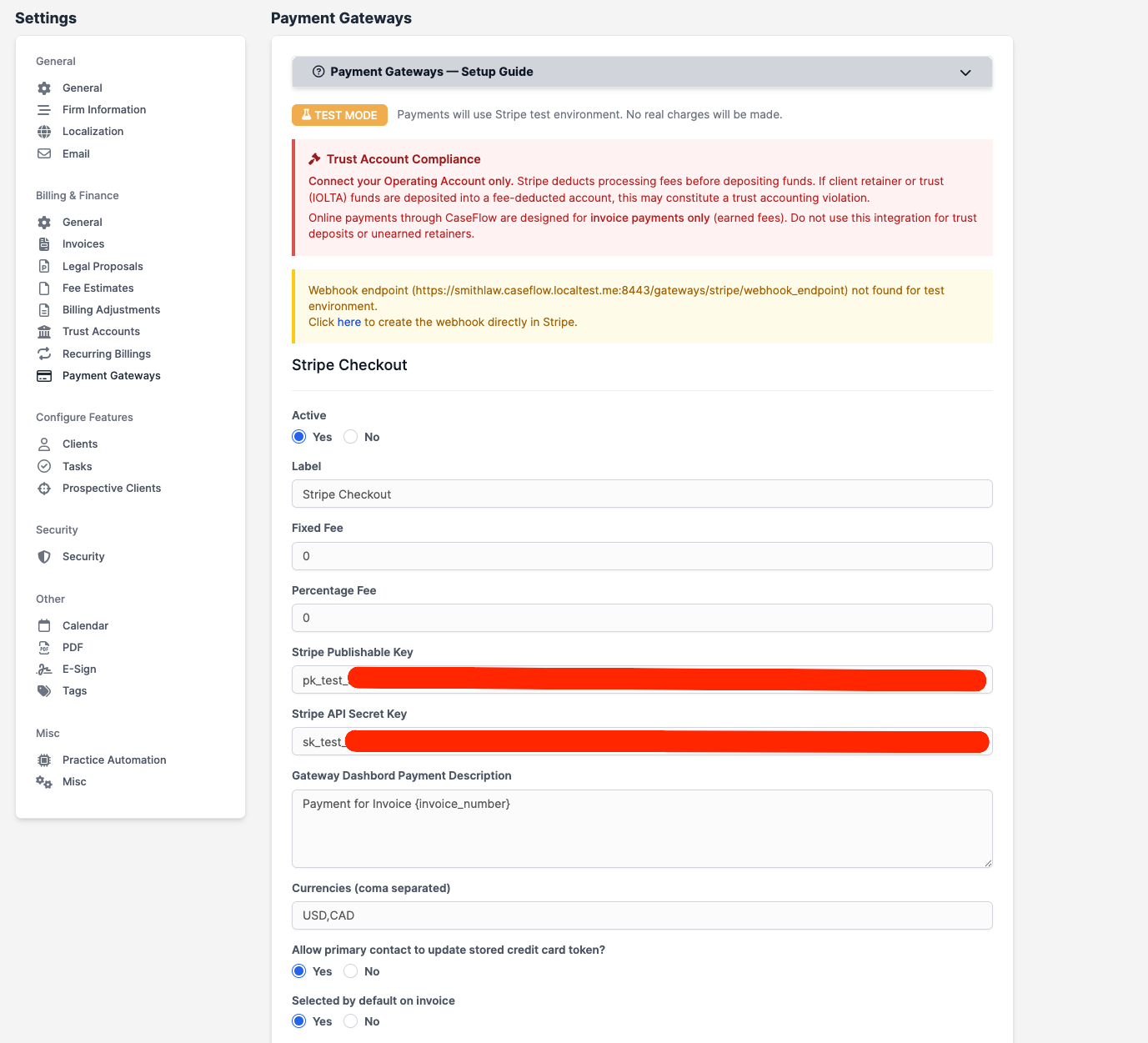
Online card payments run through CaseFlow Payments (Stripe Connect). There are no API keys to manage: the panel on this page shows your onboarding status and a Set Up Stripe button that walks you through connecting your firm's bank account. See Online payments for the full setup guide.
| Setting | What it does |
|---|---|
| CaseFlow Payments panel | Onboarding status, Set Up Stripe / Resume Setup, and Open Stripe Dashboard for payouts. |
| Notify Firm When Client Pays Invoice | When on, the firm gets an email confirmation on every online payment. |
| Allow Client to Modify Amount to Pay | When on, clients can pay a custom amount instead of the full invoice balance. |
Configure Features
Clients
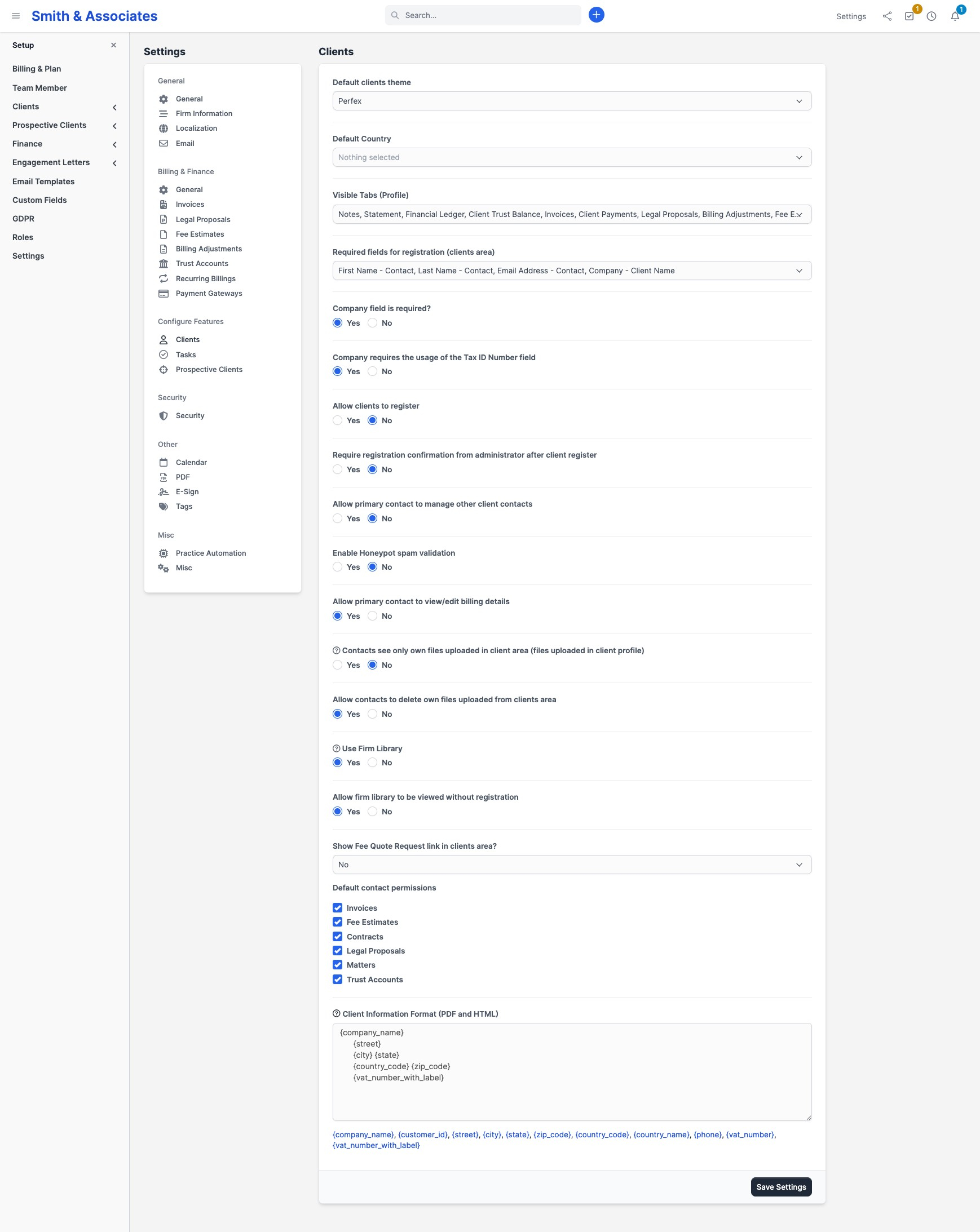
| Field | What it does |
|---|---|
| Default Clients Theme | Visual theme used in the client portal. |
| Default Country | Country pre-selected on new client records. |
| Visible Tabs on Client Profile | Which sub-tabs (Documents, Activity, etc.) appear inside the client portal. |
| Required Fields for Registration | Which contact and firm fields a self-registering client must fill in. |
| Company field is required | Forces every client to have a firm name. |
| Company requires Tax ID | Forces firms to also fill in a Tax ID Number. |
| Allow clients to register | Turns client self-signup on or off. |
| Require Registration Confirmation | New self-registered clients sit in a pending state until an admin approves them. |
| Allow primary contact to manage other contacts | The primary contact can add, edit, and remove other contacts on the client record. |
| Enable Spam Validation on Registration | Adds invisible anti-bot checks to the registration form. |
| Allow primary contact to view/edit billing details | The primary contact can update billing and shipping info from the portal. |
| Contacts see only own files | Each contact only sees files they personally uploaded. |
| Allow contacts to delete own files | Contacts can remove their own uploaded files. |
| Use Firm Library | Enables the knowledge base inside the client portal. |
| Firm Library viewable without registration | Lets anonymous visitors browse the knowledge base. |
| Show Fee Quote Request link | Adds a "Request a fee estimate" link in the portal (requires a request form to be selected). |
| Default Contact Permissions | What new client contacts can do by default. |
| Client Information Format | Client-block layout on PDFs, using merge fields. |
Tasks
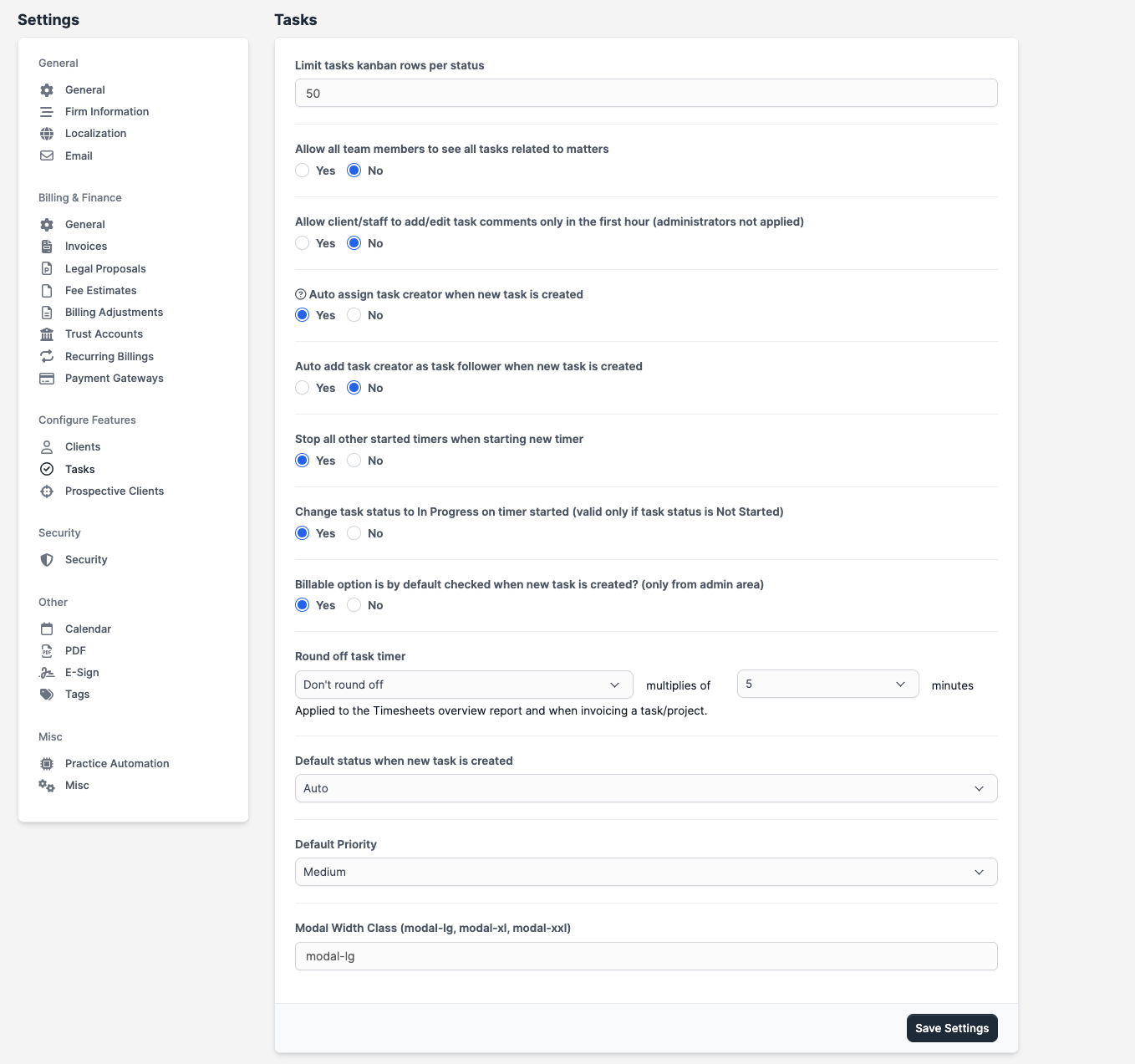
| Field | What it does |
|---|---|
| Kanban Row Limit Per Status | Maximum cards shown per column on the task board. |
| Allow all team members to see matter tasks | Anyone on a matter sees every task on it (rather than only their own). |
| Restrict Comment Edits to First Hour | Staff can only edit task comments within 60 minutes of posting (admins exempt). |
| Auto-assign Task to Creator | New tasks are pre-assigned to whoever creates them. |
| Auto-add Task Creator as Follower | The creator is also added as a follower for notifications. |
| Stop Other Timers on New Timer | When a staff member starts a new timer, any other running timer they have is stopped. |
| Change Task Status to In Progress on Timer Start | Auto-moves a task to "In Progress" when its timer starts. |
| Billable Checked by Default | New tasks are billable unless the creator unchecks. |
| Round Off Task Timer | Round logged time to the nearest 5, 10, 15, or 30 minutes. |
| Default Status for New Task | Initial status for new tasks. |
| Default Priority for New Task | Initial priority for new tasks. |
Prospective Clients
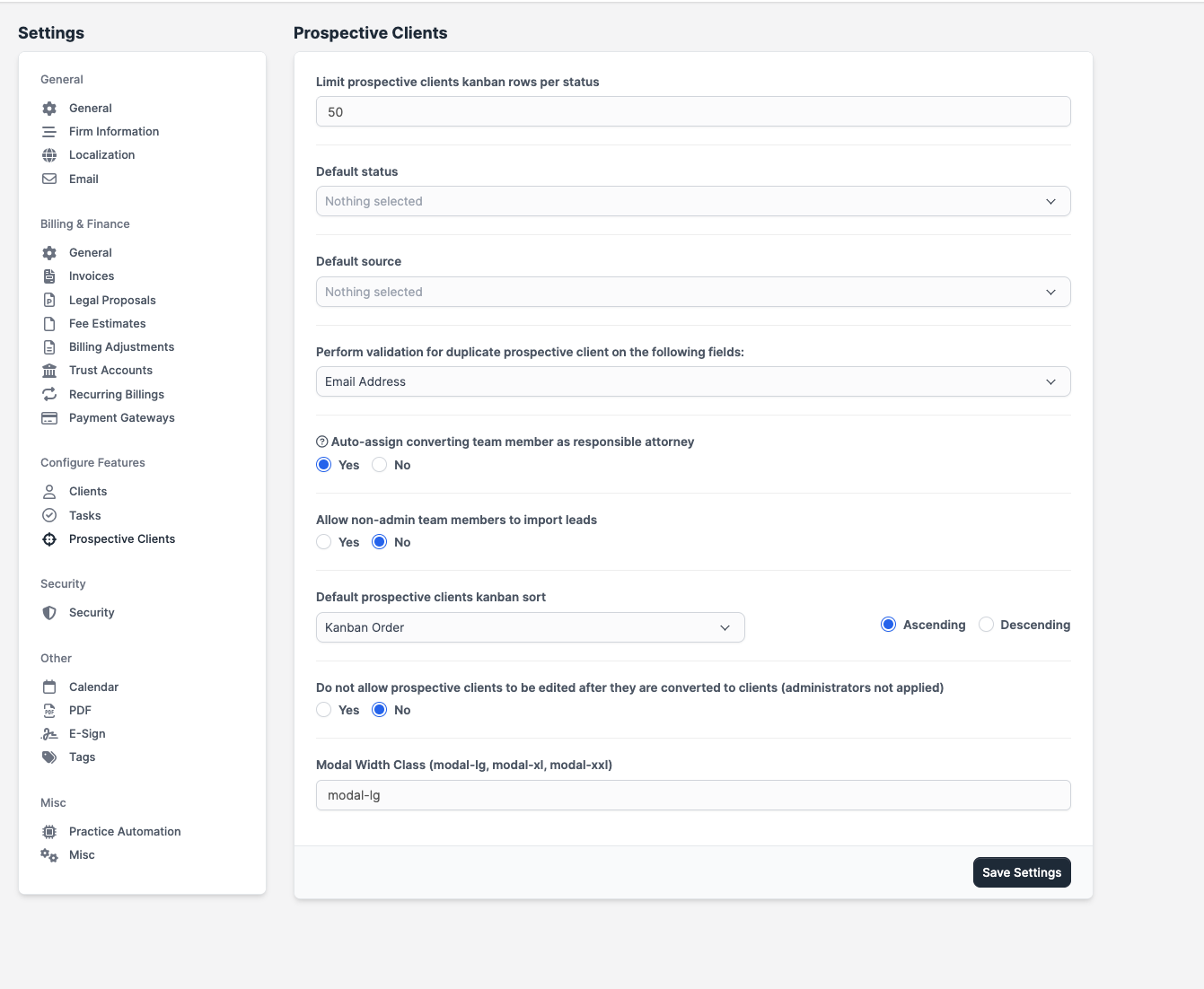
| Field | What it does |
|---|---|
| Kanban Row Limit Per Status | Maximum cards shown per column on the prospective-clients board. |
| Default Status | Status assigned to brand-new prospective clients. |
| Default Source | Source pre-selected on brand-new prospective clients. |
| Duplicate Check Fields | Which fields (email, phone, website, firm) the system checks to flag a possible duplicate. |
| Auto-assign Converter as Responsible Attorney | When a prospective client is converted to a client, the staff member who did the conversion becomes responsible attorney. |
| Allow Non-Admins to Import | Lets non-admin staff bulk-import prospective clients. |
| Default Kanban Sort | Primary sort: date created, board position, or last contact date. |
| Sort Direction | Ascending or descending. |
| Lock Prospective Client After Conversion | Once converted, the original record can't be edited (admins exempt). |
Security
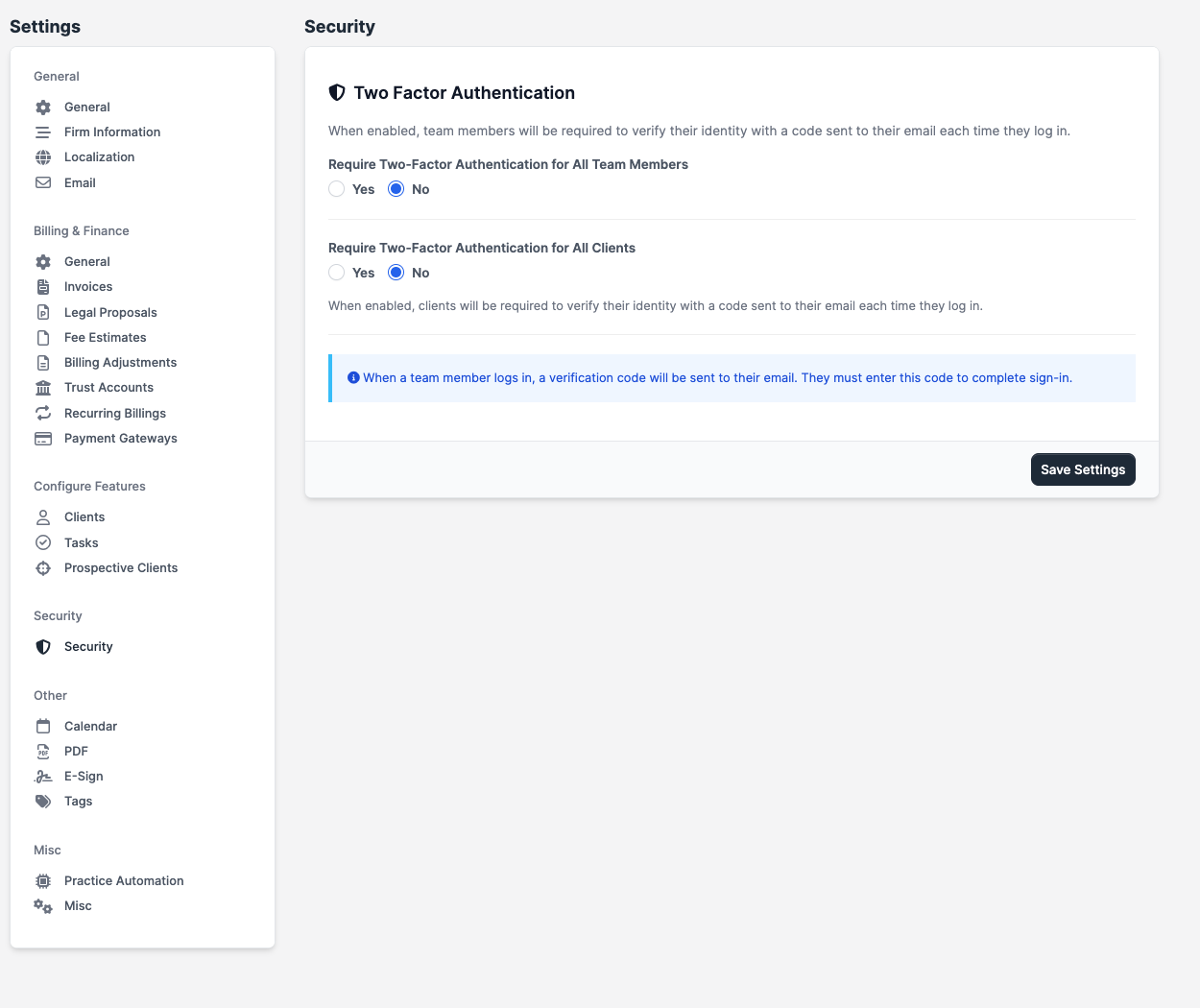
| Field | What it does |
|---|---|
| Require Two-Factor Authentication for All Team Members | Forces every staff login to verify with an emailed code. |
| Require Two-Factor Authentication for All Clients | Forces every client login to verify with an emailed code. |
Other
Calendar
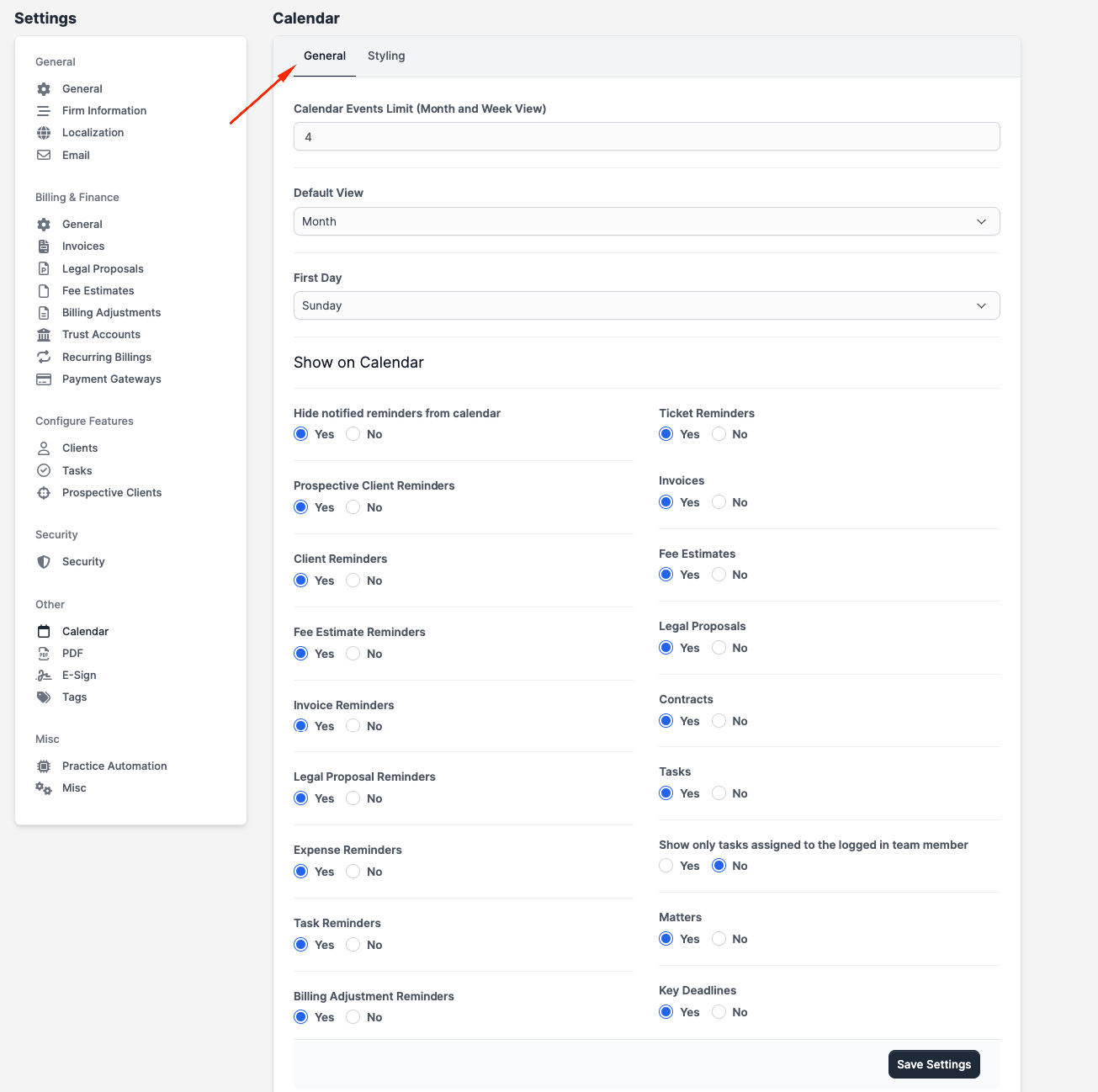
The Calendar tab has two sub-tabs: General and Styling.
General sub-tab — what shows on the calendar:
| Field | What it does |
|---|---|
| Events Limit (Month & Week View) | Maximum events visible in a single day cell before "+N more" appears. |
| Default View | Month, Week, Day, or Agenda. |
| First Day of Week | Sunday through Saturday. |
| Hide notified reminders | Reminders that have already fired are hidden. |
| Reminders toggles | Independent on/off for prospective-client, client, fee-estimate, invoice, legal-proposal, expense, task, billing-adjustment, and engagement-letter reminders. |
| Item toggles | Independent on/off for invoices, fee estimates, legal proposals, engagement letters, tasks, matters, and key deadlines. |
| Show only my assigned tasks | Tasks are filtered to the logged-in staff member. |
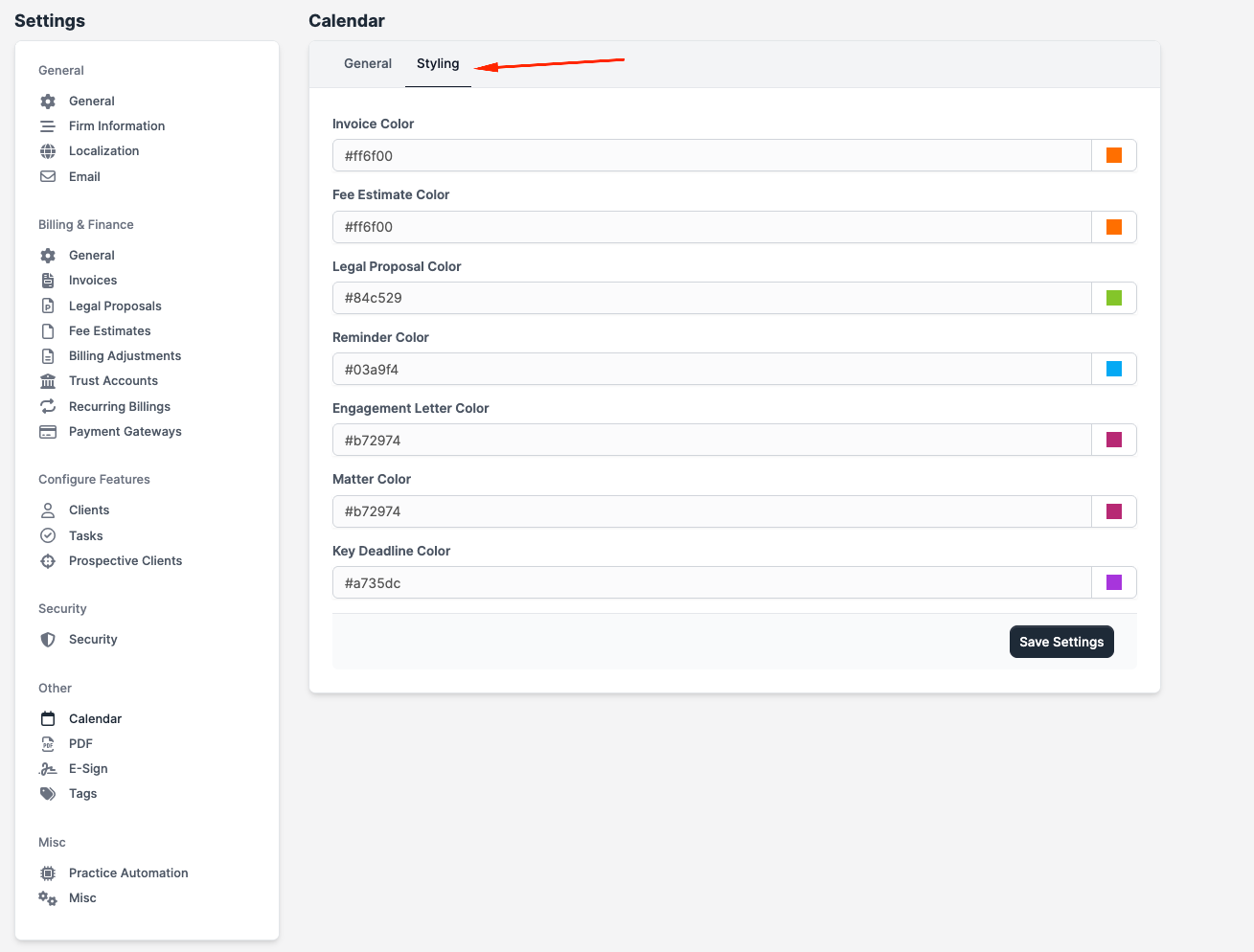
Styling sub-tab — colour-codes each event type on the calendar:
| Field | What it does |
|---|---|
| Invoice / Fee Estimate / Legal Proposal / Reminder / Engagement Letter / Matter / Key Deadline colour | Colour swatch used on the calendar for events of that type. |
PDF
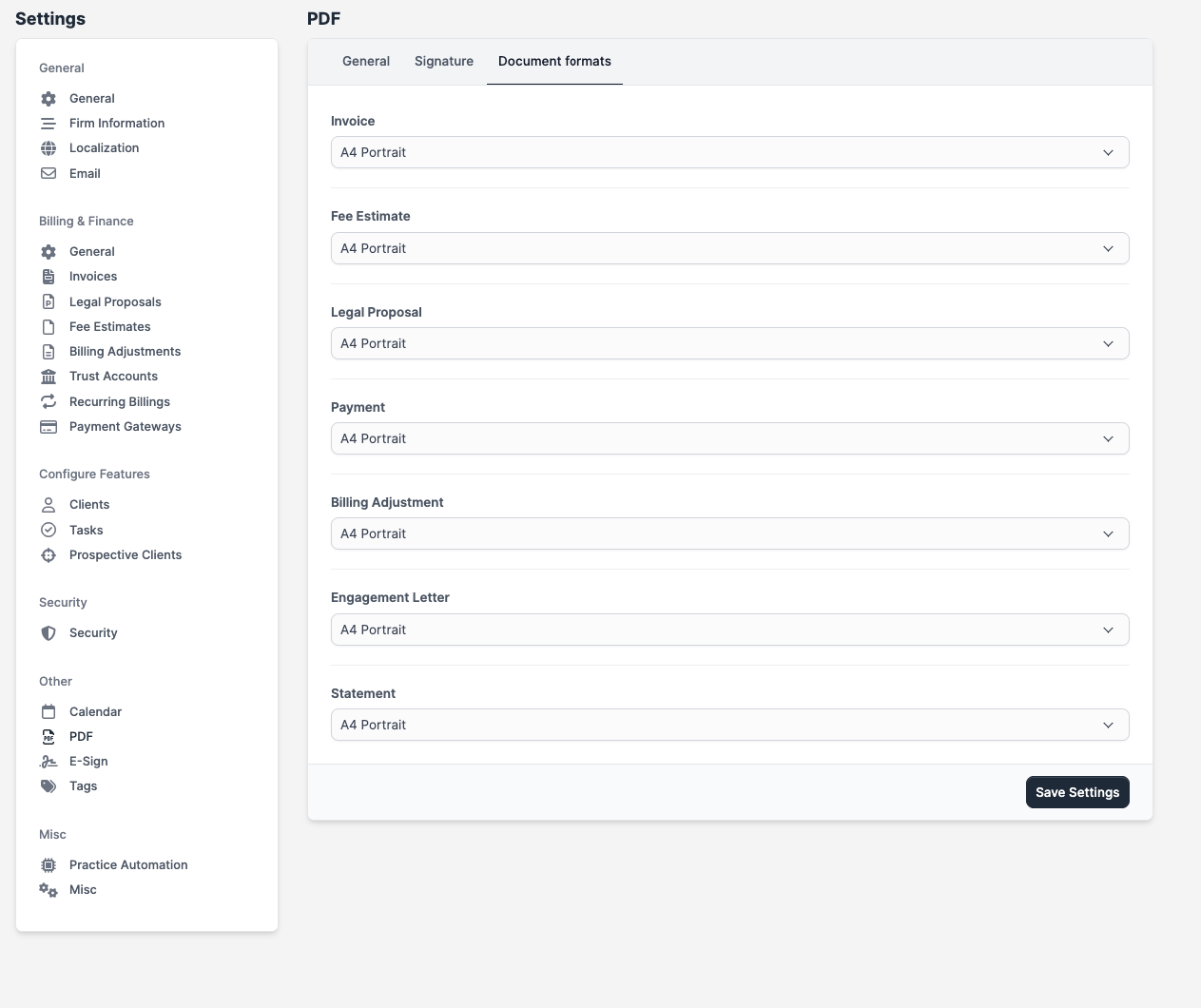
The PDF tab has three sub-tabs: General, Signature, Formats.
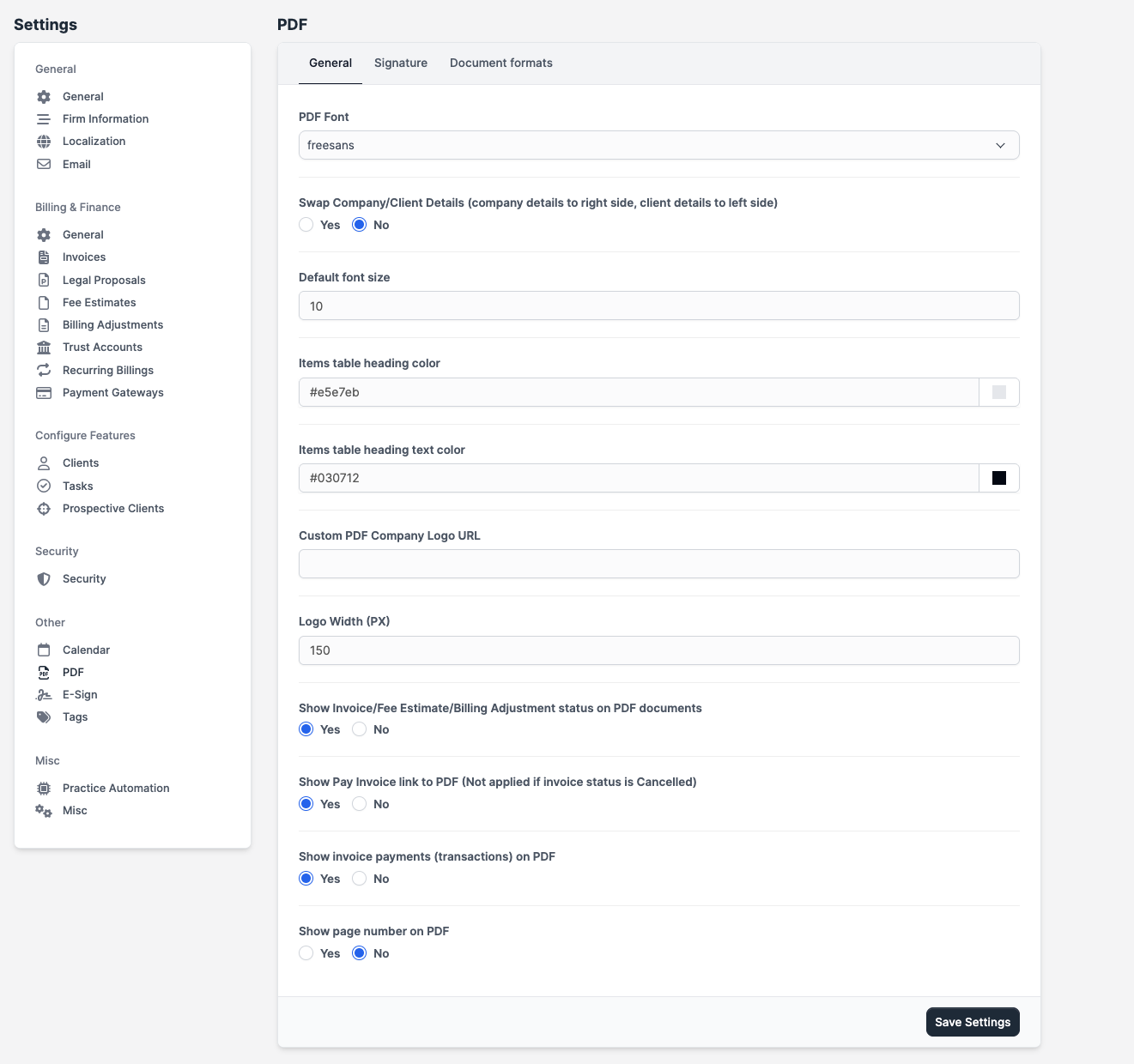
General sub-tab — global PDF appearance:
| Field | What it does |
|---|---|
| PDF Font | Typeface used across PDFs. |
| Swap Firm/Client Details | Flips the left/right placement of firm and client blocks. |
| Default Font Size | Base font size in PDFs. |
| Items Table Heading Colour | Background colour of table headers. |
| Items Table Heading Text Colour | Text colour of table headers. |
| Custom PDF Logo URL | Optional URL to a different logo for PDFs only. |
| Logo Width (px) | Display width of the PDF logo. |
| Show Document Status on PDF | Prints "Draft", "Sent", etc. on the document. |
| Show Pay Invoice link on PDF | Adds a clickable pay link on invoice PDFs (skipped for cancelled invoices). |
| Show Invoice Payments on PDF | Lists all payments received on the invoice. |
| Show Page Number on PDF | Adds page numbers to multi-page PDFs. |
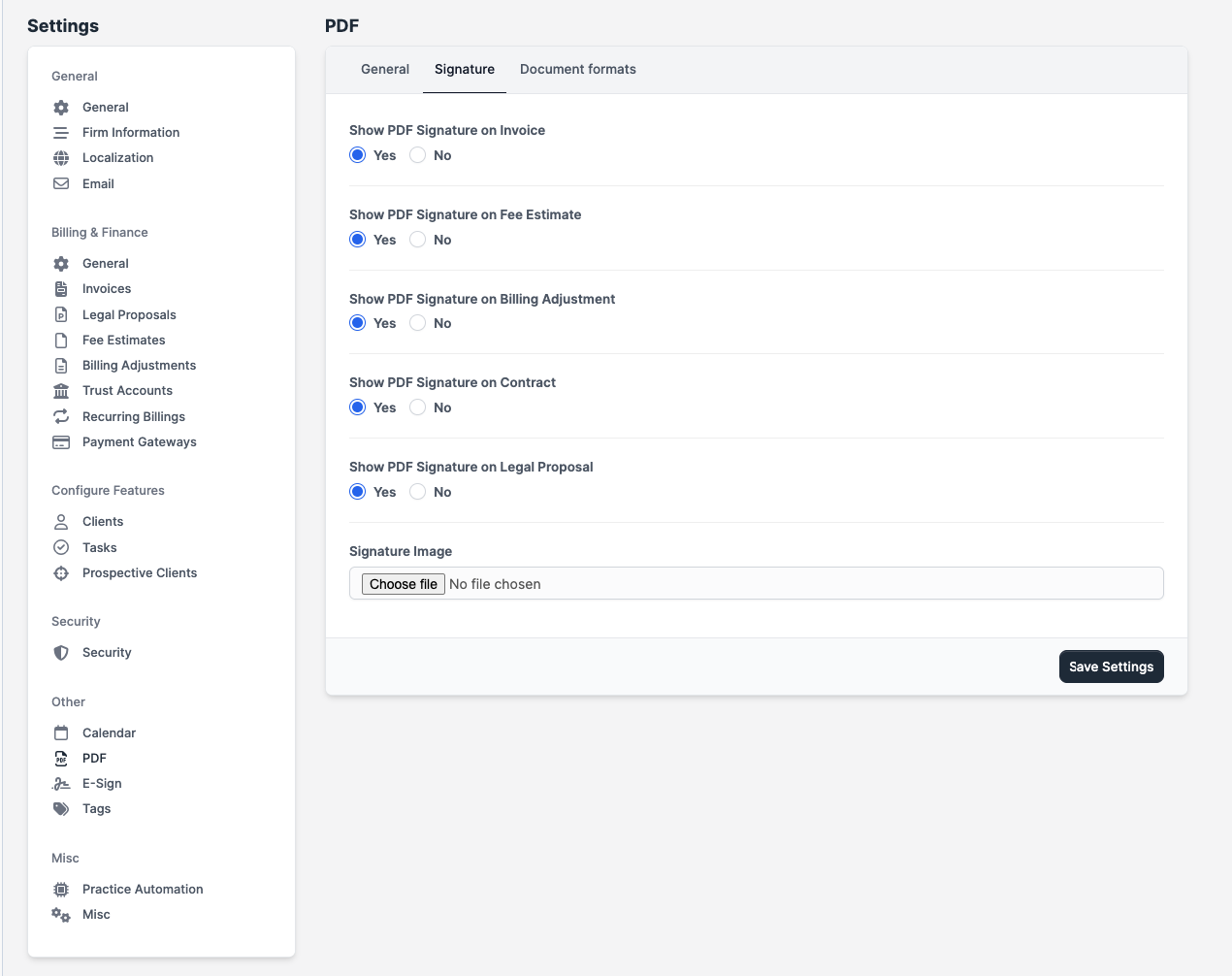
Signature sub-tab — when and where the firm's saved signature image is printed:
| Field | What it does |
|---|---|
| Show PDF Signature on Invoice / Fee Estimate / Billing Adjustment / Engagement Letter / Legal Proposal | Independent toggles per document type. |
| Signature Image | Upload or replace the firm's signature image. |
Formats sub-tab — paper size and orientation per document type:
| Field | What it does |
|---|---|
| Invoice / Fee Estimate / Legal Proposal / Payment / Billing Adjustment / Engagement Letter / Customer Statement format | Choose A4 or Letter, Portrait or Landscape, independently per document. |
E-Sign
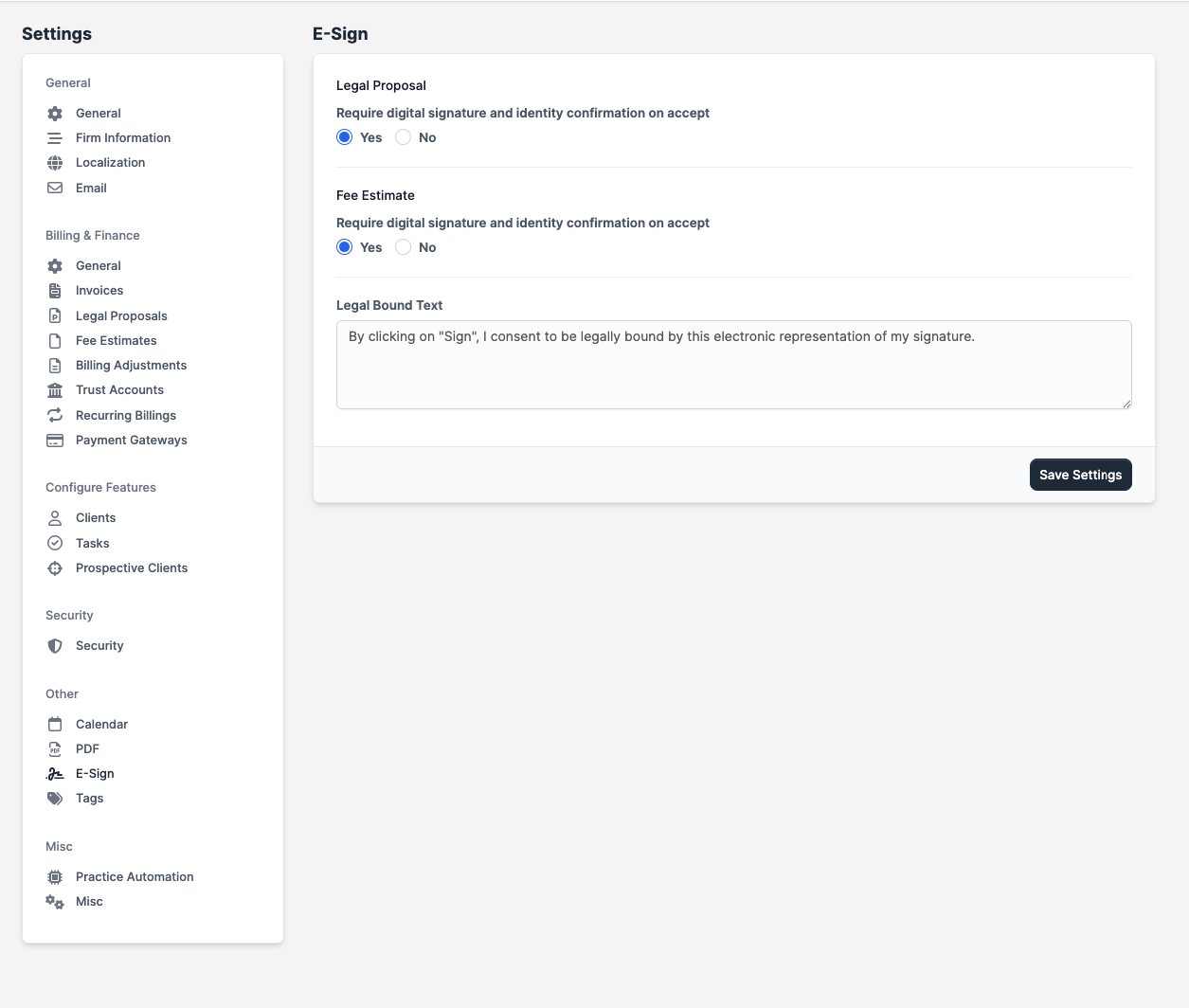
| Field | What it does |
|---|---|
| Require digital signature on Proposal acceptance | Clients must type their name and confirm identity before they can accept a proposal. |
| Require digital signature on Fee Estimate acceptance | Same as above for fee estimates. |
| Legal Bound Text | Custom legal acknowledgement text the client must read before signing. |
Tags
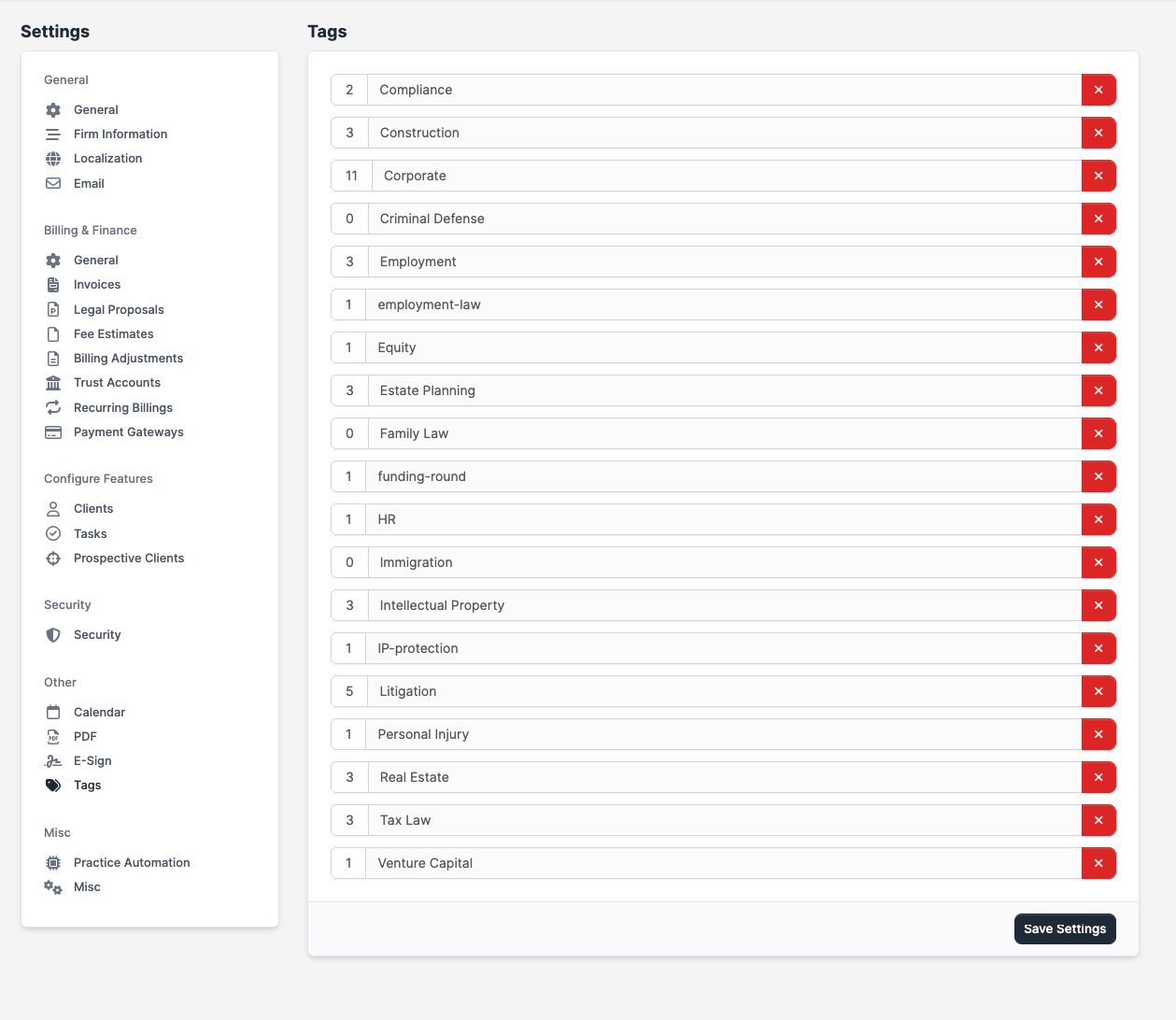
A list of every tag in use across the firm. For each tag you can edit the label (the count next to it shows how many records carry that tag) or click Delete to remove it from every record.
Misc
Practice Automation
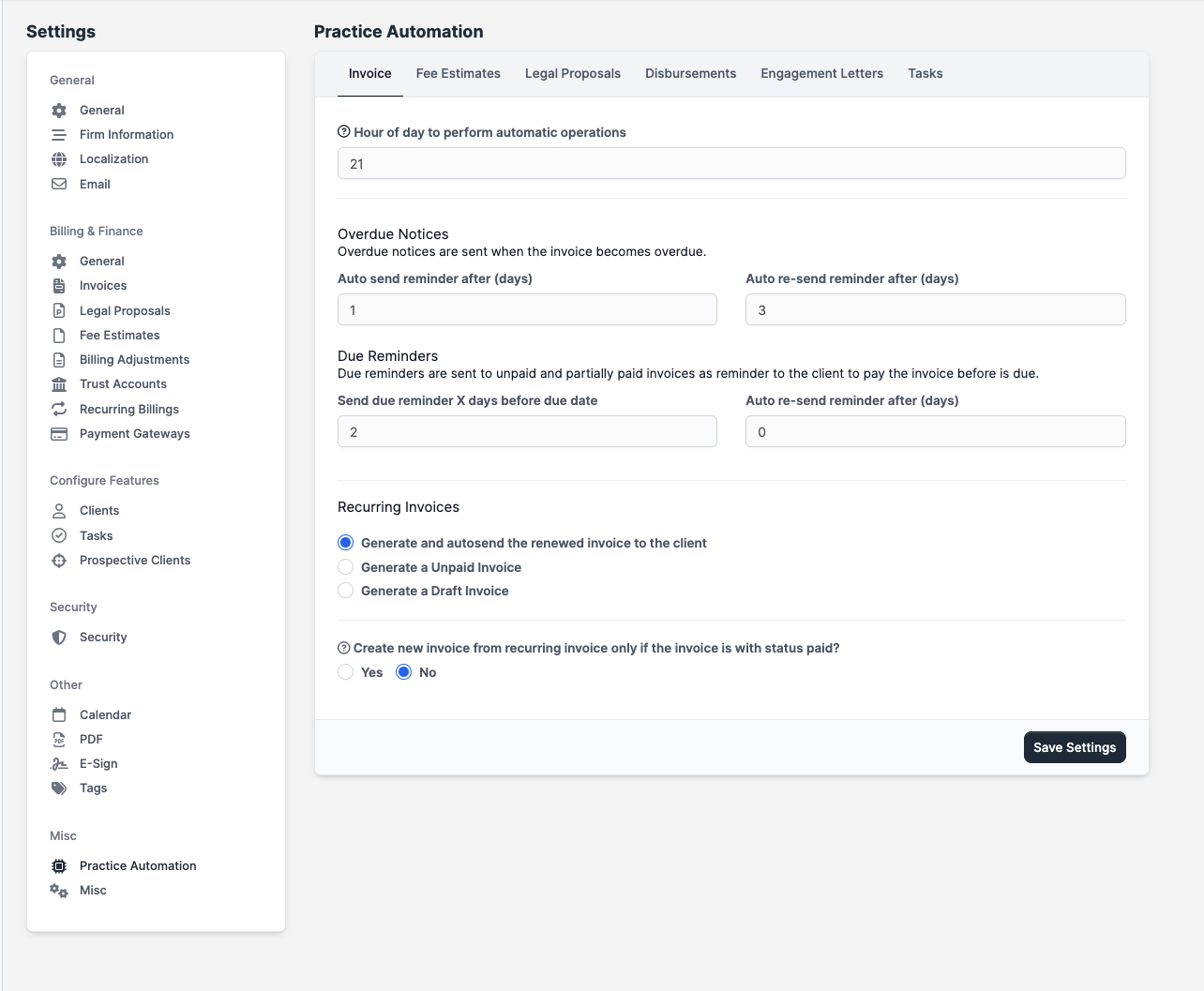
Schedules background work that CaseFlow runs on the firm's behalf — overdue reminders, recurring invoice generation, expiry notifications, and automatic timer cleanup. Settings are grouped by area:
| Area | Field | What it does |
|---|---|---|
| Invoices | Hour of day to run | The hour (0–23) when overdue checks, reminder dispatches, and recurring invoice generation run each day. |
| Invoices | Auto-send overdue reminder after (days) | Days after the due date before the first overdue reminder goes out. |
| Invoices | Re-send overdue reminder after (days) | How often the overdue reminder repeats while the invoice is still unpaid. |
| Invoices | Send due reminder before (days) | Days before the due date to send an advance reminder. |
| Invoices | Re-send due reminder after (days) | How often the due-soon reminder repeats. |
| Recurring | Generate and auto-send | When a recurring invoice renews, send it to the client automatically. |
| Recurring | Generate as Unpaid | Renewals are created in Unpaid status (no auto-send). |
| Recurring | Generate as Draft | Renewals are created in Draft status. |
| Recurring | Only generate next if previous is Paid | Holds the next renewal until the prior invoice is marked paid. |
| Fee Estimates | Hour of day to run | The hour expiry reminders run. |
| Fee Estimates | Send expiry reminder before (days) | Days before the estimate expires to notify the client. |
| Legal Proposals | Hour of day to run | The hour expiry reminders run. |
| Legal Proposals | Send expiry reminder before (days) | Days before the proposal expires to notify the client. |
| Engagement Letters | Hour of day to run | The hour expiry and signing reminders run. |
| Engagement Letters | Send expiry reminder before (days) | Days before the engagement letter expires to send a reminder. |
| Engagement Letters | Send sign reminder every (days) | How often the "please sign" reminder repeats until the client signs. |
| Disbursements | Hour of day to run | The hour disbursement automation runs. |
| Tasks | Hour of day to run | The hour deadline reminders and timer cleanup run. |
| Tasks | Send deadline reminder before (days) | Days before a task's due date to notify assignees. |
| Tasks | Automatically stop task timers after (hours) | Timers left running longer than this are automatically closed out (set to 0 to disable). |
| Tasks | Send unbilled-tasks reminder | Notify designated staff about billable tasks that are completed but not yet invoiced. |
| Tasks | Recipients | Which staff get the unbilled-tasks reminder. |
| Tasks | Days of week | Which days the unbilled-tasks reminder is sent. |
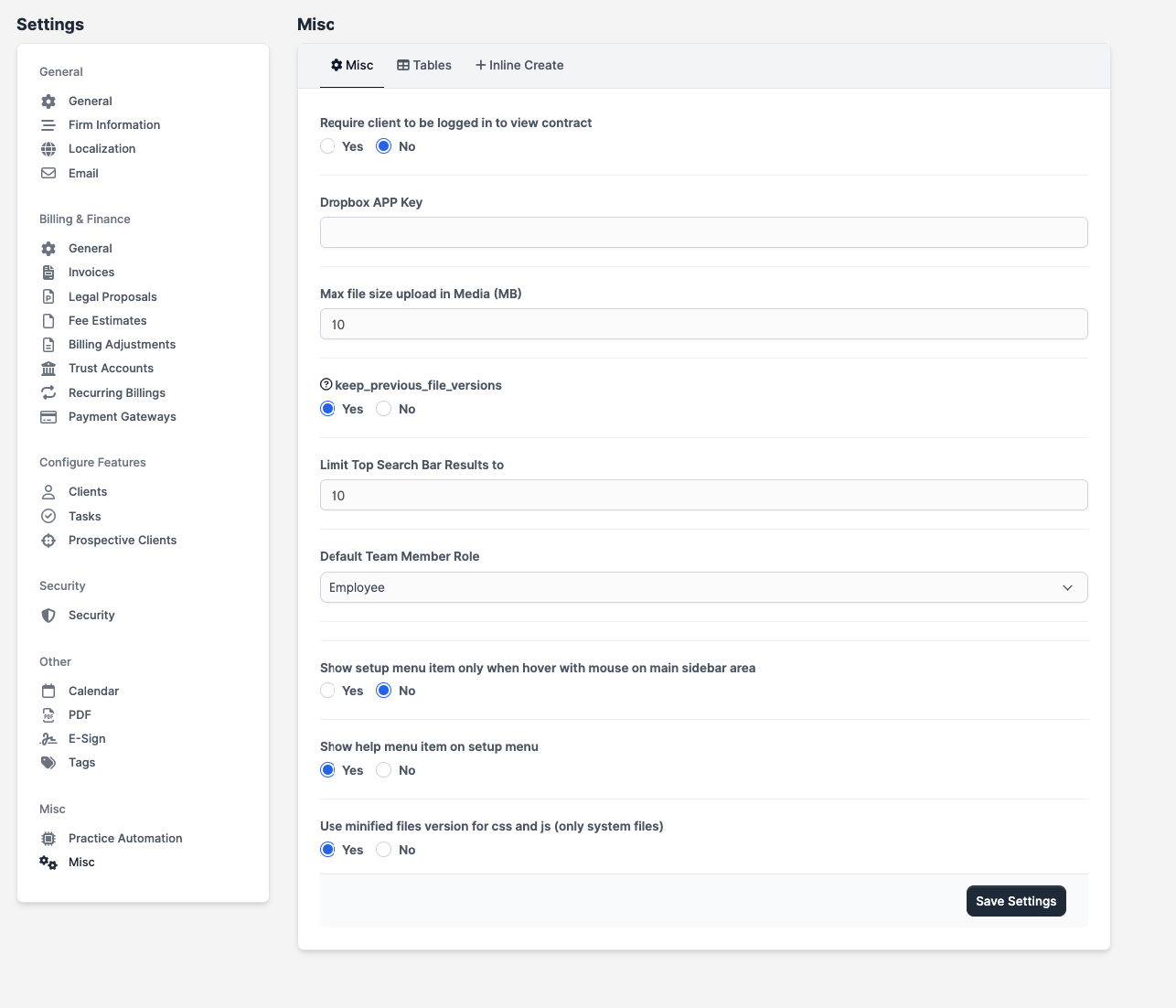
Misc
A catch-all for system-wide preferences.
| Field | What it does |
|---|---|
| Require Client Login to View Engagement Letter | When on, engagement letter links require a portal login (no public access). |
| Max File Upload Size (MB) | Maximum size of any single uploaded file. |
| Keep Previous File Versions | When a file is replaced, retain the older version in the file's version history. |
| Top Search Bar Result Limit | Maximum results shown in the global search dropdown. |
| Default Team Member Role | Role assigned to brand-new team members unless changed at creation. |
| Show Setup Menu on Hover | The Setup sidebar entry only appears when you hover the main sidebar. |
| Show Help Menu Item in Setup | Adds a Help link inside the Setup menu. |
| Use Minified Assets | Loads compressed CSS and JavaScript for faster page loads. |
| Save Last Order for Tables | Remembers the last column-sort you chose on each list view. |
| Show Table Export Button | Whether the Excel/PDF export button on lists is available to all staff, admins only, or hidden. |
| Tables Pagination Limit | Default rows-per-page on list views. |
| Inline Create permissions | A set of toggles that let non-admin staff create new prospective-client statuses, prospective-client sources, client groups, engagement-letter types, and disbursement categories from within the relevant create/edit screens. |
Saving changes
Every tab has its own Save button at the bottom. Settings are tab-scoped: hitting Save on the Invoices tab won't save changes you've made on, say, the Email tab.