
Your first client
This walkthrough takes you from an empty firm to having a client, a matter, and your first invoice. It should take about five minutes.
Step 1: Create a client
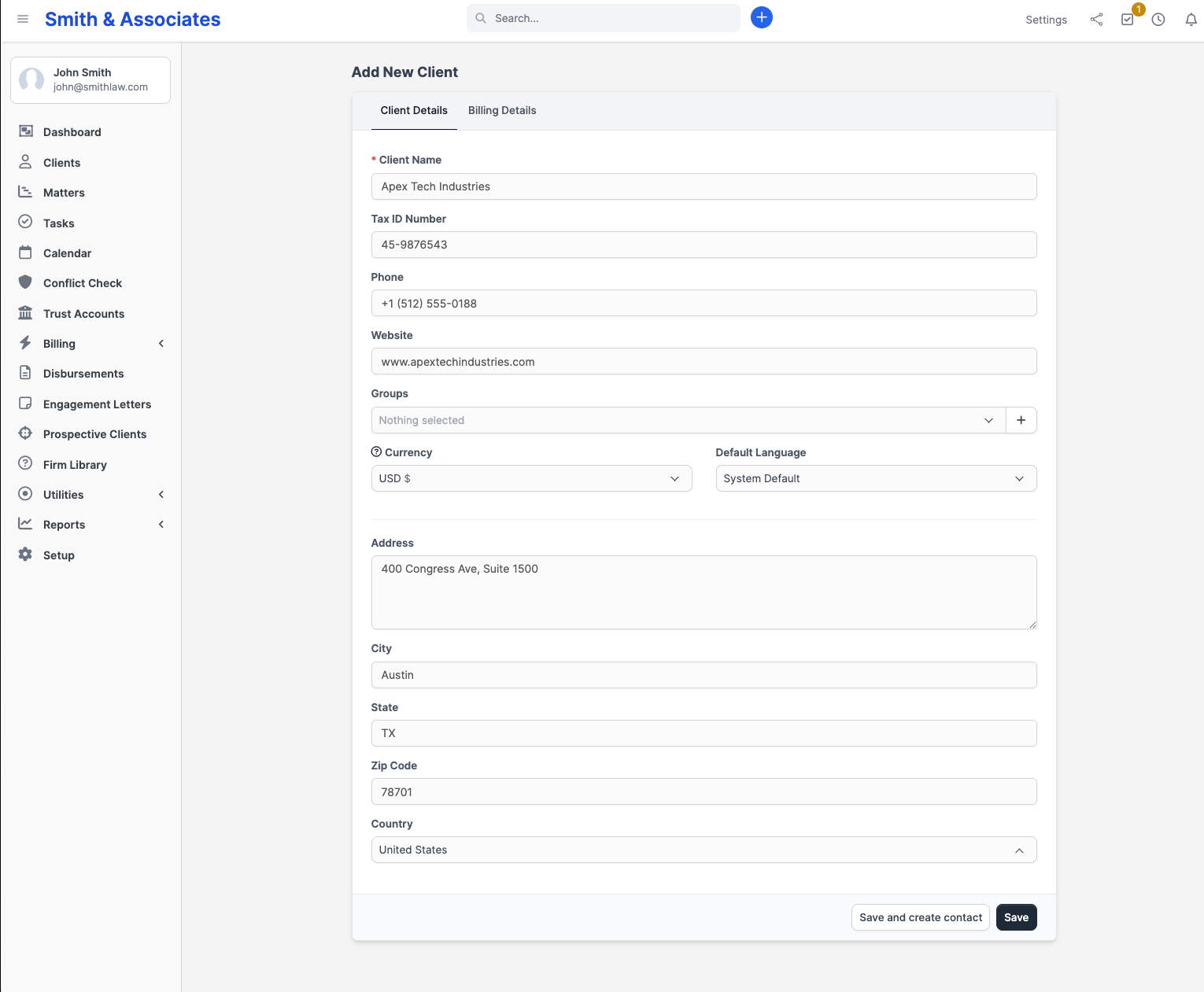
Click Clients in the sidebar, then click New Client in the top right corner.
At minimum, enter the Company/Client name (or individual's name if they are not a business). Everything else is optional for now.
Click Save.
Step 2: Add a contact
After saving, you land on the client's profile page. Click the Contacts tab.
Click New Contact and enter:
- First name and last name
- Email address
- Phone number (optional)
Check Primary Contact if this is the person you deal with most. Check Billing if invoices should go to this email.
Click Save.
Step 3: Open a matter
Click Matters in the sidebar, then New Matter.
Fill in:
- Matter name: e.g. "Smith v. Jones" or "Series A Funding"
- Client: Start typing and pick the client you just created
- Status: Leave as "In Progress" for now
- Start date: Today's date
Click Save.
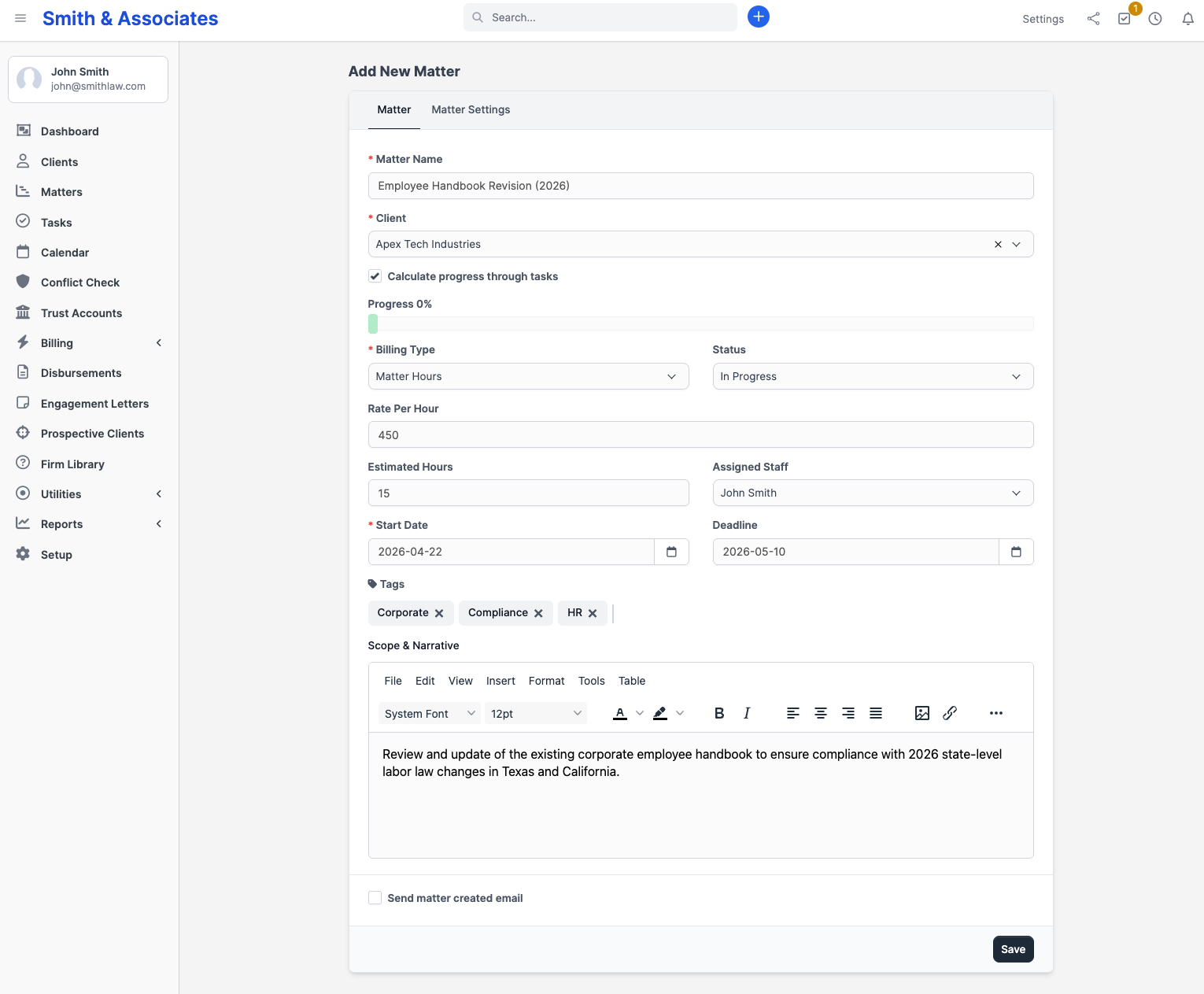
You now have a matter linked to your client. From the matter page you can add documents, tasks, notes, and deadlines.
Step 4: Log some time
Open the matter you just created. In the Tasks tab, click New Task.
Give it a name (e.g. "Initial client consultation") and click Save.
Now click the play button next to the task to start the timer. Work for a minute, then click stop. CaseFlow logs the time entry automatically.
You can also add time manually: click New Time Entry in the task, enter the hours, and write a short description.
Step 5: Create an invoice
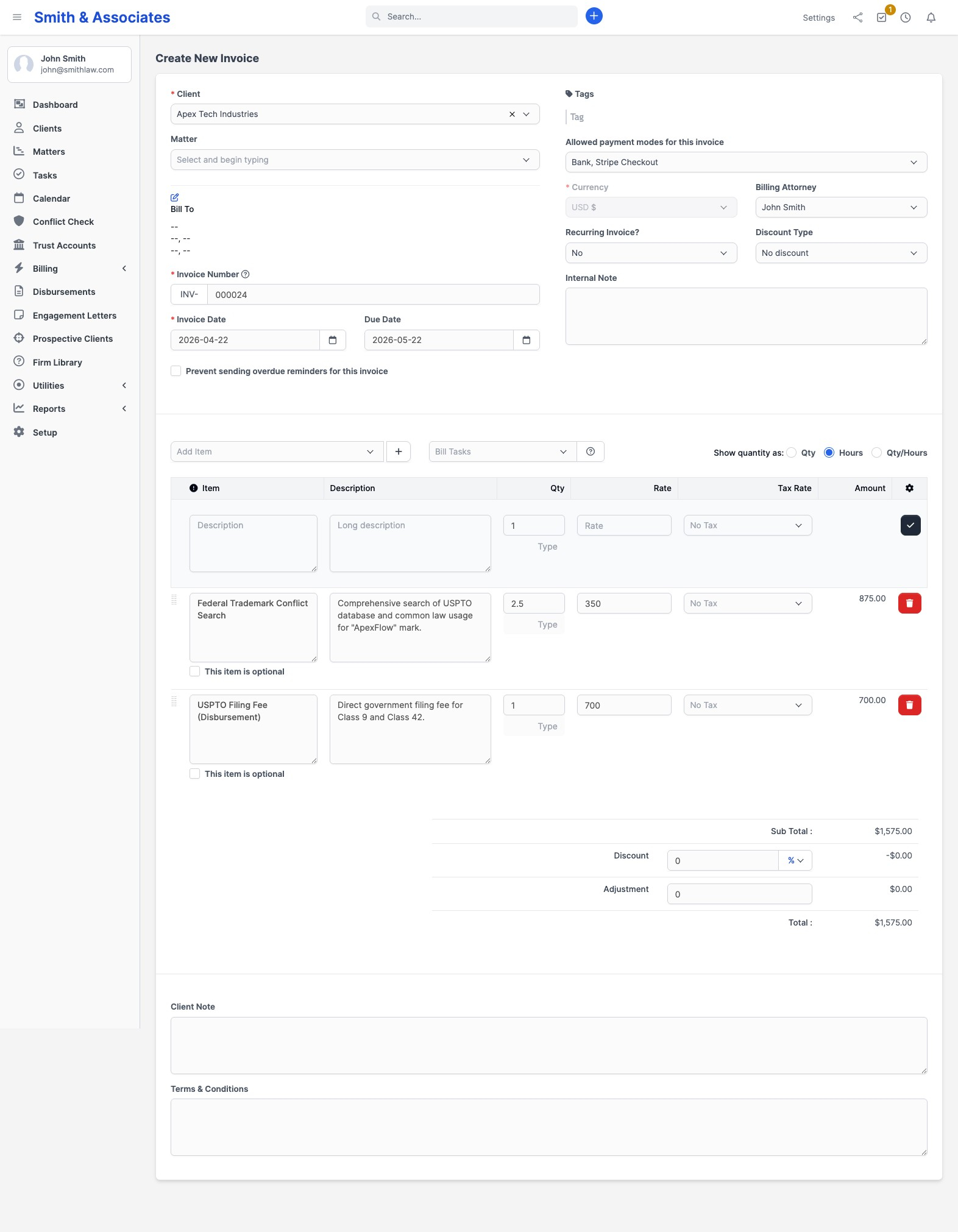
Go to Billing > Invoices in the sidebar and click New Invoice.
- Select your client
- Set the due date
- Under line items, click Add Item and type a description (e.g. "Legal consultation, 1 hour @ $250") with the amount
Click Save. You now have a draft invoice. From here you can:
- Click Send to email it to the client's billing contact
- Click PDF to download a copy
- Mark it as paid manually, or wait for online payment if you have Stripe set up
You are set up
That covers the basics. From here, explore: